
- To see search history on Wi-Fi, log in to your router’s admin panel and open its logs. Most routers only show the websites a device visited, not the exact searches.
- HTTPS encryption keeps your searches and passwords hidden from whoever runs the Wi-Fi.
- Incognito mode doesn’t hide sites from the router, but anything done on mobile data never shows up in its logs.
- Your internet bill won’t show your browsing history.
- Parental control software protects kids on any network, and it works best alongside open conversations about online safety.

If you manage your home Wi-Fi, you may be able to see which websites the devices on your network visit. It depends on your router, though, and it’s rarely the full picture. Most of them can show the domain names a device connects to, like youtube.com or instagram.com, but not the exact pages, videos or search terms. That’s because most websites today use encryption.
In many cases, parents can see internet history on Wi-Fi, or at least in part if they have the router’s admin login or use parental control software.
Below, we’ll walk through how to see search history on Wi-Fi, what Wi-Fi owners can and can’t see, whether your history shows up on the Wi-Fi bill and why open conversations about internet safety for kids usually work better than constant monitoring.
What Information Can Wi-Fi Owners See?
Because a router acts as the traffic hub for every device on your network, whoever controls it, whether that’s a parent or a café owner, may be able to see:
| What they can see | What that looks like |
|---|---|
| Websites visited (domains only) | A log entry like “tiktok.com” but not the specific video or page |
| Connected devices | Every phone, laptop, game console and smart device on the network, usually listed by name and MAC address (a unique hardware ID) |
| Timestamps | When each device connected and when it reached certain sites |
| Data usage | How much data each device used, sometimes broken down by app |
| Unencrypted traffic | The full contents of plain HTTP pages, which is rare today since most sites use HTTPS |
Can parents see internet history on Wi-Fi?
Yes, parents can see internet history on Wi-Fi, assuming they have access to the router’s administration interface or are using parental control software.
What Wi-Fi Owners Can’t See
HTTPS encrypts what happens after you land on a site, so even someone with full router access only sees the outline of your activity. They can tell a device visited google.com, for example, but not what you searched for or which videos you watched.
The same goes for messages and passwords on HTTPS sites and in encrypted apps like WhatsApp. And anything you do over mobile data never reaches the home router, so it won’t show up in its logs at all.
How to See Search History on Wi-Fi
You’ll find your router’s activity records in its admin panel, which you can open from any device on your network. Here’s how to check browsing history on a Wi-Fi router:
- Find your router’s IP address. It’s often printed on a sticker on the router. Common defaults are 192.168.0.1, 192.168.1.1 and 10.0.0.1.
- Log in to the admin panel. Type the IP address into a browser on a device connected to your Wi-Fi, then enter the admin username and password. If you’ve never changed them, check the router sticker or manual, and update them afterward. Default logins are one of the most common ways routers get hacked.
- Open the logs. Look for a section called Logs, System Log, History, Activity or Traffic. It’s sometimes under Advanced or Administration.
- Review the entries. You’ll typically see a device name or IP, a domain and a timestamp. Some routers let you filter by device or export the list.
If your router doesn’t have a logging feature, it can’t show you browsing history at all. In that case, router-level parental controls or a parental control app are your best options.
Can You See Search History on the Wi-Fi Bill?
If you’re hoping (or worried) the Wi-Fi bill will reveal someone’s browsing, it won’t. Internet bills don’t list search history or the websites you’ve visited. On some plans, you can also see the total data used during the billing cycle. It doesn’t break down activity by site, search or device.
That means parents can’t see search history through the Wi-Fi bill. If they want to know what’s happening online, they’d need router access, parental controls on the device itself or (ideally) a conversation.
Can Parents See Deleted Search History on Wi-Fi?
Hitting “clear history” on a phone or laptop wipes the record from that device but not necessarily from the router. Many routers keep only a small log that resets on restart, though, so there may be nothing to find. Parental control software installed on the device may also keep its own records.
How Do You Clear Internet Browsing History on Your Router?
Clearing the browsing history on your router is done in the same admin panel you use to view it. Once you’re logged in, look for a section or tab labeled “Logs” or “History.” The exact location varies by router brand and model.
In those settings, you should see an option to clear or delete the logs. Follow the on-screen instructions, then save your changes and reboot the router for them to take effect.
Can a Wi-Fi Owner See What Sites I Visit on My Phone?
A Wi-Fi owner can potentially see what sites you visit on your phone if they have access to the router’s administration interface or are using network monitoring tools. The router can log the URLs of websites visited by devices connected to the Wi-Fi network, and you can view this information by accessing the router’s settings.
However, it’s important to note that accessing this information typically requires administrative privileges and knowledge of the router’s login credentials. Additionally, some routers may not have built-in features for logging website visits, or the logging feature may not be enabled by default.
Can a Wi-Fi Owner See What Sites I Visit on Incognito?
Incognito mode feels private, but it doesn’t hide your browsing from the Wi-Fi network. Parents can see incognito history through Wi-Fi in the same way they see regular browsing. Incognito mode only stops your browser from saving history and cookies on your own device.
It doesn’t hide traffic from the router, your internet provider or the websites you visit, so a Wi-Fi owner could still see the domains you visited while in incognito mode, just not the specific pages or searches. Here’s more on why incognito mode is not private and how to see incognito history on your own devices.
Can Schools, Employers and Public Wi-Fi Owners See Your History?
Usually, and often in more detail than a home router.
- Schools commonly use web filters that log and flag visits on school Wi-Fi and school-issued devices.
- Employers can monitor activity on company networks and devices. On a work laptop, monitoring software may see more than just domains. Here’s more on how employers can track you.
- Public Wi-Fi at cafés, hotels and airports may log the sites you visit and tie them to your sign-in details. Unsecured networks also carry the risk of man-in-the-middle attacks.
As a rule, assume any network you don’t control can see which sites you visit.
5 Tips for Keeping Your Family’s Internet Usage Safe
Monitoring tools can only do so much and the habits your family builds matter just as much. These five tips help your kids stay safer online while still giving them room to grow:
- Start the conversation early: Begin discussing online safety with your children from a young age. Use age-appropriate language and scenarios to educate them about the importance of privacy, responsible internet use and online risks.
- Establish clear boundaries: Set clear rules and boundaries for internet usage within your household. Discuss what types of websites and apps are appropriate, as well as limits for screen time. Ensure your children understand the importance of seeking permission before accessing certain online content.
- Use a VPN: Consider using a virtual private network (VPN) to encrypt internet traffic and enhance privacy when your children are browsing online. VPNs can help protect their data from potential threats and provide an extra layer of security, especially when using public Wi-Fi networks.
- Foster open communication: Create an open and supportive environment where your children feel comfortable discussing their online experiences with you. Encourage them to ask questions, express concerns and seek guidance when encountering unfamiliar situations online.
- Teach critical thinking skills: Empower your children with critical thinking skills to navigate the online world safely. Teach them to evaluate the credibility of websites, recognize potential online threats like phishing scams and make informed decisions about sharing personal information online.
Common Ways Teens Bypass Parental Control
While parental controls can be effective tools for managing children’s online activities, parents need to be aware of the methods their teens may use to bypass them. Knowing the common workarounds helps you choose controls that work.
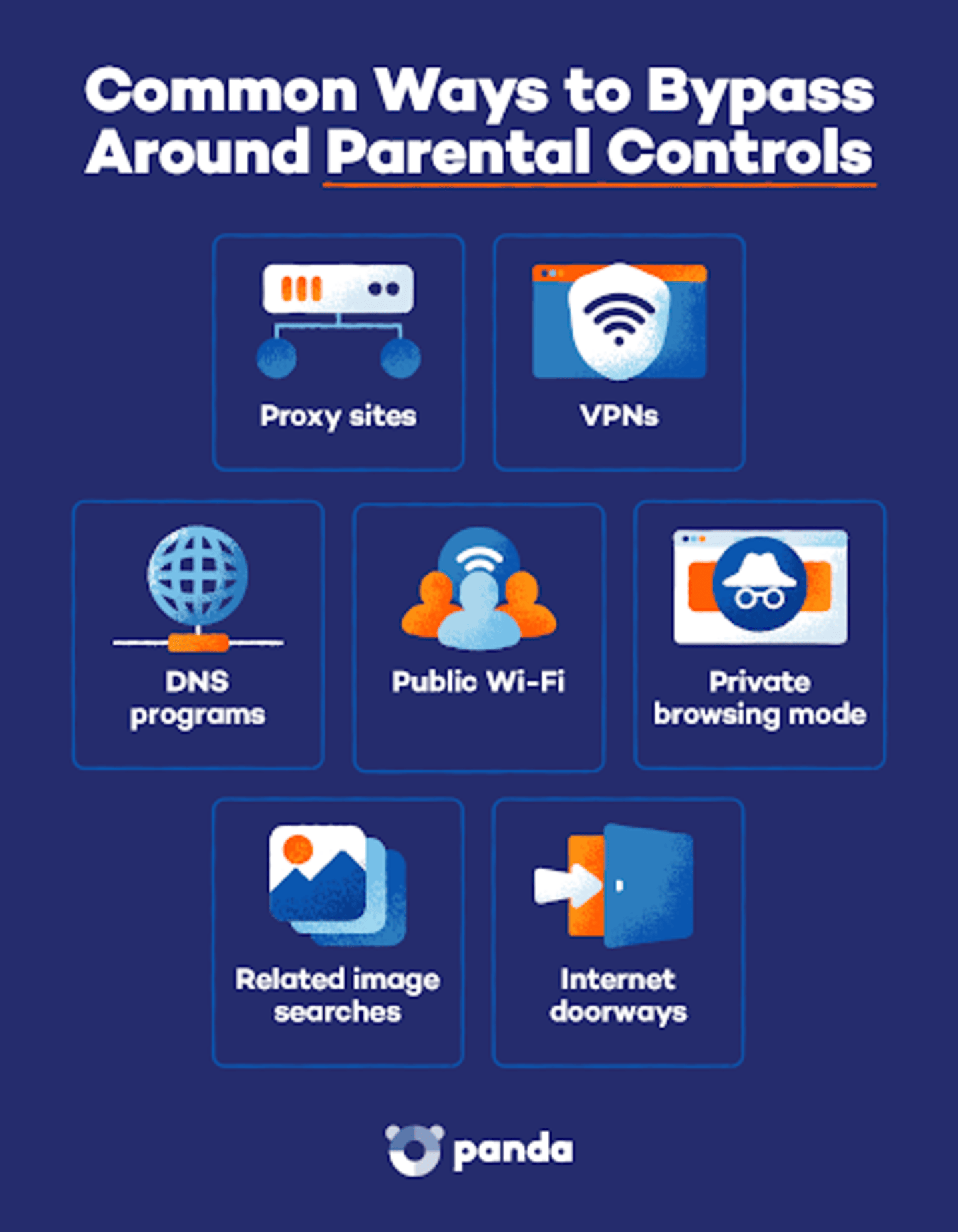
- Proxy sites: Proxy sites hide IP addresses, allowing access to restricted sites without leaving a trace. They work a lot like VPNs, but the main difference between a VPN and a proxy is that a proxy usually doesn’t encrypt your traffic.

- VPNs: VPNs encrypt internet traffic, making it difficult to detect browsing history.

- DNS programs: Teens can bypass DNS filters using public DNS servers or altering router settings.

- Public Wi-Fi: Accessing websites via public or unfamiliar Wi-Fi networks circumvents home security settings.

- Private browsing mode: Private browsing modes (like incognito) prevent history tracking on devices allowing access to restricted content.

- Related image searches: Blocked sites on regular search engines may be accessible via related image searches.

Keep Your Family Safer Online With Panda Dome Family
Router history shows domains rather than searches, and it disappears when your child switches to mobile data or a VPN. Panda Dome Family protects your child’s device directly, so its protection follows them on any network. You can filter inappropriate content, set screen time limits, manage apps and check activity reports from one place.
Combine it with open conversations and clear household rules, and your kids can explore online more safely while you get peace of mind.
Internet History FAQ
Let’s look at some of the most commonly asked questions related to internet browsing and safety.
Who Can Track My Browsing History?
From parents and employers to internet service providers (ISPs) and cybercriminals, various entities can monitor online activities. Here’s a concise breakdown of who can track your browsing history:
- Parents/guardians: Parents or legal guardians may monitor their children’s browsing history using parental control software or monitoring tools.
- Authorities: Law enforcement agencies or government entities may legally track browsing history by obtaining warrants for access to internet service provider records.
- ISPs: Internet service providers can track and log customers’ browsing history as part of their network management practices.
- Websites and online platforms: Websites and online platforms track users’ browsing history through cookies and other tracking technologies for personalization, targeted advertising and analytics.
- Employers: Employers may track browsing history on company-owned devices or networks for security, productivity or compliance purposes using network monitoring software or IT policies.
- Hackers and cybercriminals: Hackers and cybercriminals may attempt to access and track browsing history through malware, phishing attacks or exploiting vulnerabilities in devices or networks.
- Third-party services and apps: Third-party services and social media applications such as TikTok, Instagram and Facebook may track browsing history for analytics and advertising purposes.
How Long Does a Router Keep Browsing History?
It depends on the model. Many home routers keep a small rolling log that overwrites old entries or clears on restart. Others keep records until someone deletes them. App-based systems like TP-Link Deco may keep insights for a set period, such as 30 days.
How Do You Clear Internet Browsing History on Your Router?
Clearing internet browsing history on your router typically involves accessing the router’s administration interface and locating the appropriate settings. Here’s a general guide on how to do it:
- Access the router’s admin interface: Open your web browser on a device connected to the router’s network. Enter the router’s IP address in the address bar to access the admin interface.
- Log in to the router: You’ll be prompted to enter the router’s username and password. This information is usually provided in the router’s manual or may be found on a sticker on the router itself.
- Navigate to the browsing history settings: Once logged in, look for a section or tab related to “Logs,” “History” or “Activity.” The exact location and terminology may vary depending on the router’s manufacturer and model.
- Clear browsing history: Within the browsing history settings, you should see options to clear or delete browsing history logs. Follow the on-screen instructions to clear the browsing history stored on the router.
- Save changes and reboot: After clearing the browsing history, be sure to save your changes and reboot the router to ensure the changes take effect.
Can Someone Else on My Wi-Fi See My History?
Not usually. Other people connected to the same Wi-Fi, like roommates or guests, can’t see your browsing unless they have the router’s admin login or the network is badly secured. If you’re worried about who’s on your network, here’s how to stop people from connecting to your Wi-Fi.
Can the Wi-Fi Owner Get My History From the Internet Provider?
Generally, no. Internet providers can see the domains their customers visit, but they don’t list browsing history on bills and typically don’t share it with account holders upon request.