
Rootkits are the malware you never see coming.
They behave differently from other types of malware, by burrowing deep into your operating system, hiding from security software while silently stealing passwords and personal data for months. Victims often have no warning signs at all, which gives attackers persistent access to their devices.
Rootkit removal is challenging, but it’s far from impossible with the right approach. This post walks you through how to detect a rootkit infection, the removal methods that actually work, and how to keep your system protected afterward.
How to Remove a Rootkit: Step-by-Step
Rootkit removal is possible in most cases, but it’s rarely as straightforward as deleting a file or running a quick scan. Because rootkits embed themselves deep within system processes, successful removal depends on using the right tools in the right order.
Step 1: Disconnect From the Internet
Before running any scans or removal tools, disconnect your device from the internet. Rootkits frequently communicate with remote servers to receive instructions, exfiltrate stolen data or download additional malware payloads and cutting off that connection limits the damage while you work through the removal process.
Step 2: Boot Into Safe Mode
Safe Mode starts Windows with only the minimum drivers and services required to run, which prevents many rootkits from loading at startup. Running your scans from this environment gives removal tools a better chance of detecting threats that would otherwise be active and hidden.
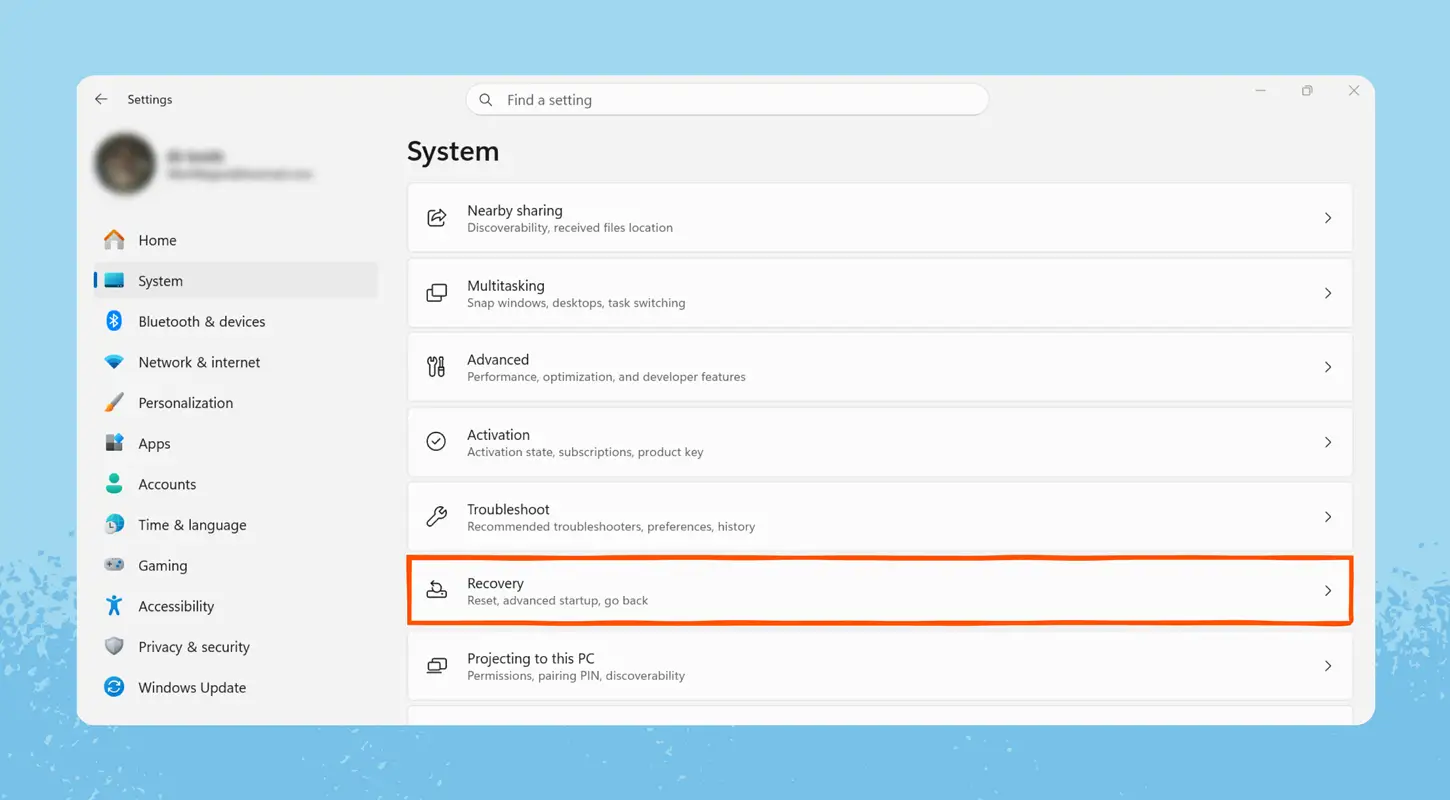
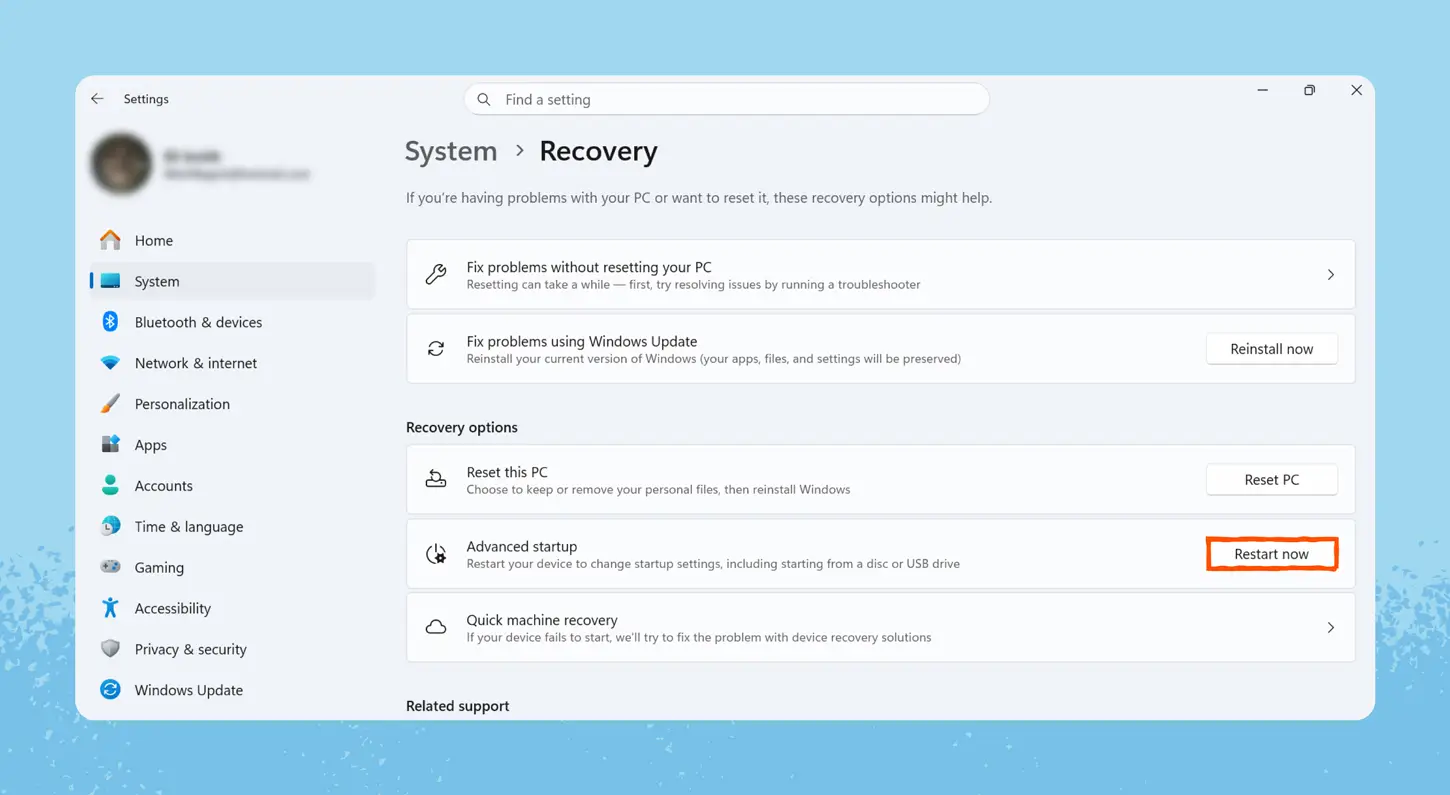
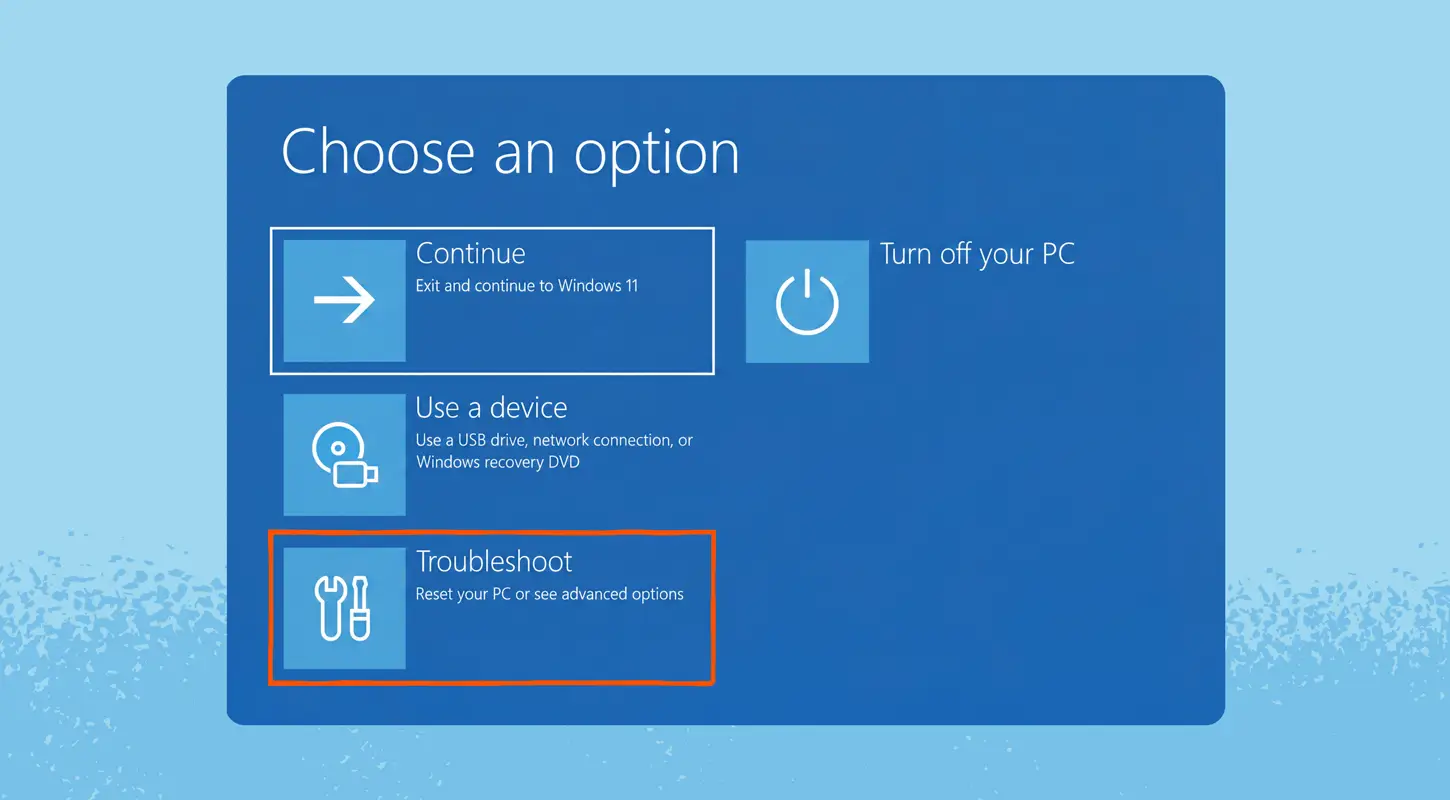
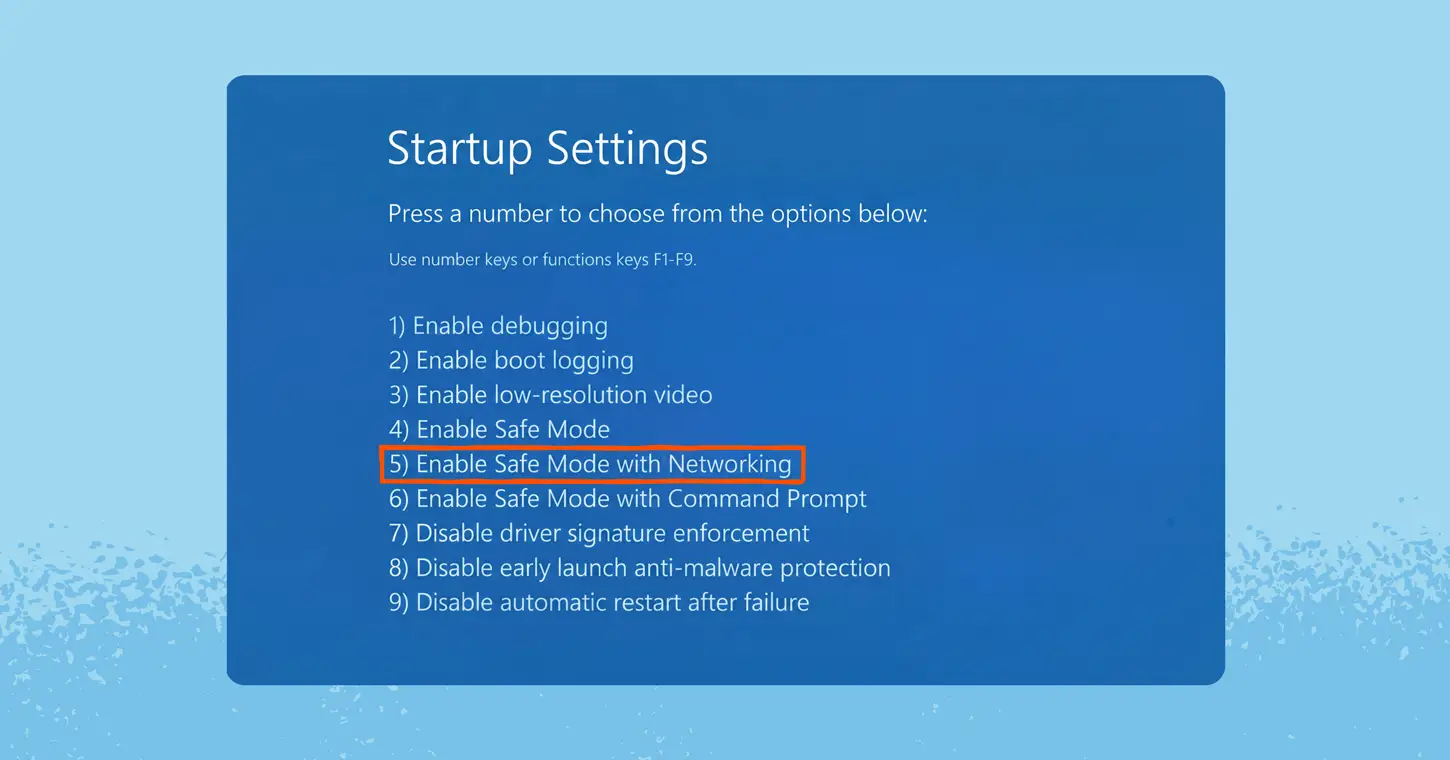
To enter Safe Mode on Windows 10 and 11:
- Press the Start button and go to Settings > Update & Security > Recovery
- Under Advanced Startup, select Restart Now
- After your device restarts, choose Troubleshoot > Advanced Options > Startup Settings
- Select Enable Safe Mode with Networking
- Desktop in Safe Mode

On older Windows versions, restart your device and press F8 before Windows loads, then select Safe Mode with Networking from the menu.
Step 3: Run a Dedicated Rootkit Removal Tool
Once in Safe Mode, run a trusted rootkit removal software to scan your system. Standalone tools target specific known rootkit families but are limited in scope.
Panda Security’s antivirus suite combines rootkit detection with real-time protection, boot-time scanning and behavioral analysis, making it a stronger option for users who want broader, ongoing coverage rather than a single-purpose fix.
Step 4: Run a Full System Scan
After running a dedicated removal tool, follow up with a full antivirus scan to catch any remaining threats or related malware the rootkit may have dropped. Rootkits frequently install secondary payloads, such as spyware, keyloggers or trojans, that a rootkit-specific tool may not address.
Allow the scan to run completely without interruption and quarantine or delete anything flagged. If your antivirus was disabled or tampered with before removal, make sure it’s fully updated before running this step.
Step 5: Update Your OS and Software
Once the rootkit has been removed, close the door it came through by applying all pending operating system and software updates. Rootkits frequently exploit known vulnerabilities in outdated software, and leaving those gaps unpatched puts your device at risk of reinfection.
Check for updates in Windows Update as well as any third-party applications, browsers and plugins you have installed. Keeping your software current is one of the most effective ways to prevent future infections.
What Is a Rootkit?
The rootkit definition starts with the name itself. “Root” refers to the highest level of administrator access on Unix-based systems, and “kit” refers to the tools used to obtain it. Together, they describe malicious software designed to gain deep, privileged control over a system while staying hidden.
Rootkits are not a single type of malware; they’re more of a delivery method. A rootkit can carry viruses, spyware or other threats at a system level where traditional security tools struggle to detect them.
Types of Rootkits
Rootkits are categorized by where they embed themselves in a system, and the deeper they go, the harder they are to remove.
Here are the most common types:
- User-mode rootkits run in the same space as regular applications, intercepting system calls to hide files, processes and registry entries. They’re the easiest to detect and remove.
- Kernel-mode rootkits operate at the core of the operating system, giving attackers near-total control and making them significantly harder to remove.
- Bootkits infect the master boot record or bootloader, loading before the operating system starts and surviving most standard removal attempts.
- Firmware rootkits embed themselves in device firmware, such as a router or hard drive, persisting even after a full OS reinstall.
- Memory-based rootkits live entirely in RAM, leaving no files on disk. They don’t survive a reboot, but can cause serious damage during an active session.
How Rootkits Get on Your Device
A rootkit rarely appears out of nowhere. In most cases, attackers rely on deception to get you to install one yourself.
The most frequent entry points include:
- Phishing emails that trick you into clicking a malicious link or downloading an infected attachment
- Malicious downloads disguised as legitimate software, games or media files from untrustworthy sources
- Fake software updates that mimic real system prompts to get you to install malware voluntarily
- Drive-by downloads that automatically install a rootkit virus when you visit a compromised or malicious website, with no click required
Signs You May Have a Rootkit
Rootkits are built to avoid detection, so obvious red flags are rare. Instead, infections tend to surface as performance issues that slowly worsen over time. If several of these warning signs appear together, it’s worth running a rootkit scanner to investigate.
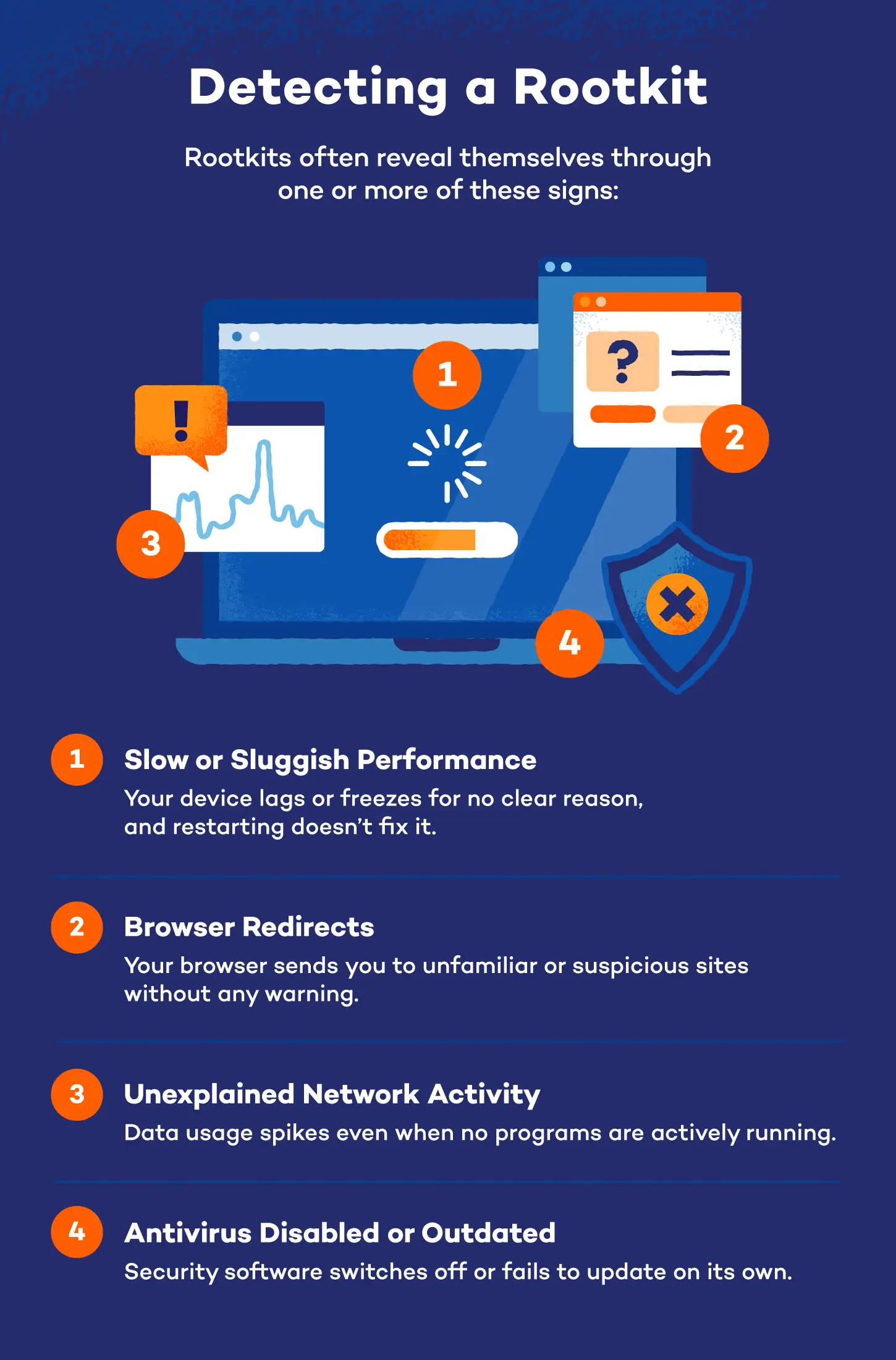
How to Scan for Rootkit
If you’ve spotted one or more of those symptoms, the next step is active detection. Standard security tools often aren’t enough, so two methods tend to be most effective for home users.
Using a Rootkit Scanner
Standard antivirus scans work at the file level, but rootkits operate beneath that layer, which is why a dedicated scanner is essential when an infection is suspected.
When evaluating your options, look for tools that scan memory, registry entries, boot sectors and system files rather than surface-level processes alone. Behavioral detection and regular definition updates are the other key features to prioritize.
Boot-Time Scanning
Boot-time scanning runs a full system check before the operating system loads, which prevents an active rootkit from hiding during the process. Since most rootkits activate alongside the OS, this earlier stage gives security software a clearer, unobstructed view of the system.
Panda Security’s solutions include boot-time scanning capabilities, making it easier to catch threats that would otherwise evade standard detection. For persistent or hard-to-remove infections, it’s one of the most reliable methods available to home users.
Rootkit Removal on Android
Mobile rootkits do exist, and Android is the most frequently targeted platform. Symptoms like unusual battery drain, unexpected data usage and apps behaving unexpectedly are all common warning signs. Finding the best rootkit remover for Android starts with a reputable mobile security app that offers deep system scanning.
A few additional considerations:
- Avoid sideloading apps outside the Google Play Store, where most mobile rootkits originate
- Run a full scan with a trusted mobile security app before attempting any manual removal
- Factory reset if removal is unsuccessful, but back up essential data first and avoid restoring from a backup made after the infection began
When to Wipe and Reinstall Your OS
Most rootkits can be removed with the right tools, but bootkits and firmware rootkits can survive a full OS reinstall. If your device continues showing signs of infection after multiple scans, or if removal tools are repeatedly blocked, a full wipe is likely the safest path forward.
Before wiping, back up essential files to an external drive or cloud storage, but avoid backing up executable files or installed applications that may carry the infection. A clean OS reinstall gives you the most reliable fresh start.
Best Rootkit Removal Tools
Choosing a rootkit removal tool comes down to whether you need a quick fix or lasting protection. If you’re dealing with an active infection, a standalone scanner can help, but a comprehensive security suite is the stronger long-term choice.
Here’s a breakdown of the best rootkit removal tool options available for home users:
| Tool | Type | Key Features | Best For |
|---|---|---|---|
| Panda Security | Full suite | Real-time protection, boot-time scanning, behavioral analysis | Comprehensive, ongoing protection |
| Bitdefender Rootkit Remover | Standalone | Targets known rootkit families, lightweight | Quick, targeted removal |
| Sophos Virus Removal Tool | Standalone | Free, actively maintained, deep system scanning | Single-use removal |
| Malwarebytes | Full suite | Deep scanning, rootkit detection and real-time protection | Broad malware coverage |
| McAfee Rootkit Remover | Standalone | Fast scanning, free to use | Single-use removal |
How to Protect Your Device From Rootkits
Preventing a rootkit infection is far easier than removing one. Most successful attacks exploit predictable vulnerabilities like outdated software, careless downloads and gaps in real-time protection, all of which are avoidable with the right habits and tools in place.
The most effective preventive steps include:
- Keep your OS and apps updated to close known vulnerabilities that rootkits commonly exploit
- Use a trusted antivirus with real-time protection like Panda Security, which monitors your system continuously for suspicious activity before threats can take hold
- Avoid suspicious email attachments and downloads from sources you don’t recognize or weren’t expecting
- Enable a firewall to block unauthorized connections and limit exposure to network-based attacks
- Don’t click unknown links in emails, text messages or on unfamiliar websites
Protect Your Devices From Malware with Panda Security
Early detection and the right tools are the difference between a contained threat and months of undetected damage. With the right security habits in place, most infections are entirely preventable.
Panda Dome gives home users real-time protection, boot-time scanning and advanced threat detection, and it’s free to get started.
Frequently Asked Questions
Rootkits are among the more complex malware threats home users can face, and the removal process raises many questions. Below are answers to some of the most common ones to help you move forward with confidence.
Is it possible to get rid of a rootkit?
Yes, in most cases, rootkits can be removed using dedicated rootkit removal tools or by reinstalling your operating system. The right approach depends on the type: user-mode infections are typically straightforward, while bootkits or firmware rootkits often require a full system wipe.
What’s the best rootkit removal tool?
The best rootkit removal tool combines real-time protection with deep system scanning, which is where a full suite like Panda Dome has an advantage over standalone options. Bitdefender Rootkit Remover and Malwarebytes is a solid choice for targeted scans, but neither offers the same level of ongoing coverage. For the most thorough detection, prioritize a tool that includes boot-time scanning.
How do I know if I have a rootkit?
Because rootkits are designed to hide, the most reliable way to find out is to run a dedicated rootkit scanner. That said, a few common warning signs are worth watching for:
- Sluggish performance with no clear cause
- Antivirus software is being disabled or blocked from updating
- Browser redirects to unfamiliar websites
- Unexplained network activity or high data usage
Which antivirus can detect rootkits?
Not all antivirus programs are equally effective at detecting rootkits. Panda Security’s antivirus suite uses behavioral analysis and deep system scanning to catch rootkits that traditional signature-based tools miss. Other reputable options with rootkit detection include Bitdefender and Malwarebytes.
How do rootkits differ from other malware?
Unlike typical viruses or spyware, rootkits are specifically designed to conceal themselves and other malicious software at a deep system level. Rather than causing immediate, visible damage, their primary function is to stay hidden while enabling persistent attacker access.
Can a rootkit survive a factory reset?
Most rootkits can be eliminated with a full OS reinstall, but firmware rootkits that live in a device’s BIOS or hardware may survive even a factory reset. In those rare cases, BIOS re-flashing or hardware replacement may be required.
What should I do after removing a rootkit?
After rootkit removal, change all your passwords and check your accounts for any signs of unauthorized access. Follow up with a full antivirus scan to catch any remaining threats and make sure your OS and software are fully updated. Enabling real-time protection going forward is one of the most effective ways to prevent reinfection.