Managing passwords for a whole family can get confusing fast, since there’s a lot to keep track of: school accounts, banking apps, streaming services and more. And people often end up saving passwords in notes or reusing the same ones just to keep things simple.
And even when people try to be careful, habits can create risk. Password statistics reveal that around 34% of users use strong passwords but repeat variations of them across different accounts. That means one leaked password can still open multiple doors.
A family password manager solves this by helping you create unique passwords for every account and making it easy to share them safely within your family. Whether you prefer each person to have their own account or just want one across many devices, both can work well for your family.
Let’s look at the top 10 options that make managing family passwords simple and secure.
Why Your Household Needs a Dedicated Family Password Manager
Managing passwords as a family is less about convenience and more about control. A dedicated tool built for shared access makes everyday logins safer and easier to handle.
A family-focused password management tool brings:
- One secure place for everything: Store all logins in a shared vault that the whole family can access when needed.
- Safe sharing without texting passwords: Share accounts like Netflix or Wi-Fi without exposing passwords in chats or notes.
- Stronger, unique passwords for every account: Avoid reusing passwords and let the tool generate them automatically.
- Easy access across devices: Log in from phones, tablets or laptops without remembering every password.
- Less stress, fewer lockouts: No more “forgot password” loops or reset emails piling up.
- Built-in controls for parents: Manage access and support better internet safety for kids.
Choosing the best password manager for family use keeps everyone protected while making daily logins simple.
Heads up:
Before you buy, know that family password managers come in one of two forms:
- Single user account: A family-friendly solution that shares the same passwords across all devices.
- Multi-user account: Creating sub-accounts for each family member to store different passwords.
Family Password Managers at a Glance
Here’s a quick side-by-side look at the top options:
| Tool | Best for | Shared vaults? | Emergency access? | Users/devices covered | Platform support | Price |
|---|---|---|---|---|---|---|
| Panda Dome | Single account password management | ✅ | ✅ | 1 User (multiple devices) | Windows, macOS, Android, Edge, Firefox, and Chrome | Roughly $2.1/mo |
| 1Password | Secure sharing + Travel Mode | ✅ | ✅ | 5 users (expandable) | Windows, macOS, Android, iOS, browsers | $4.49/mo |
| RoboForm | Handling forgotten passwords | ✅ | ✅ | Up to 5 users | Windows, macOS, Android, iOS, browsers | $2.66/mo |
| NordPass | Affordable family security | ✅ | ❌ | Up to 6 users | Windows, macOS, Android, iOS, browsers | $2.69/mo |
| Keeper | Advanced security controls | ✅ | ❌ | 5 users, unlimited devices | Windows, macOS, Android, iOS, browsers | $7.08/mo |
| Bitwarden | Budget-friendly plans | ✅ | ❌ | Up to 6 users | Windows, macOS, Android, iOS, browsers | $3.99/mo |
| Dashlane | VPN + extra security tools | ✅ | ❌ | Up to 10 users | Windows, macOS, Android, iOS, browsers | $4.07/mo |
| LastPass | Easy setup | ✅ | ✅ | Up to 6 users | Windows, macOS, Android, iOS, browsers | $2.80/mo |
| Total Password | Basic low-cost use | ❌ | ❌ | Individual use | Windows, macOS, Android, iOS | Roughly $9.9/mo |
| Aura | All-in-one digital safety | ✅ | ❌ | Multiple users (family plans) | Windows, macOS, Android, iOS | $32/mo |
1. Panda Dome Password Manager: Best Family-Friendly Solution
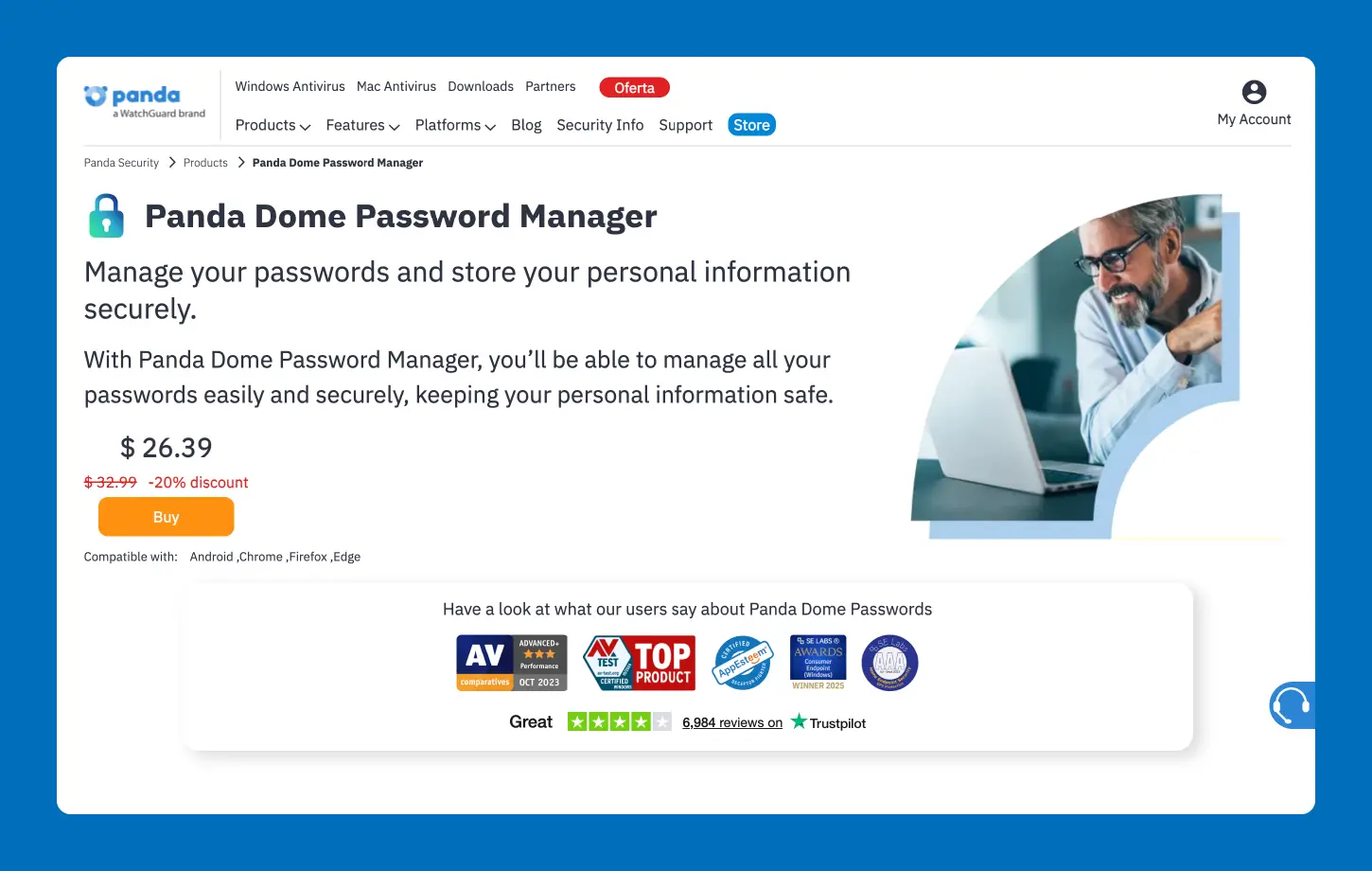
Panda Dome Password Manager is a simple and secure tool designed for families who want to keep their logins organized without jumping between multiple accounts. It works well for users who don’t want to jump between multiple users to find and share passwords.
With browser extensions on Chrome and Safari alongside Windows, macOS, Android, Edge, Firefox, and Chrome apps and extensions, Panda Dome Password Manager stores all your passwords on the web, fills them in automatically and creates strong ones when needed, syncing them across devices.
It also checks if your passwords have been exposed and supports two-factor authentication (2FA) for extra safety. This becomes especially useful for families dealing with cybersecurity for kids, where accounts can be more vulnerable due to shared devices and online activity. Pairing a password manager with the best antivirus with parental controls rounds out your family’s protection.
Even if your kids or family members don’t want the app, you can keep their accounts secure with safe credential sharing. You can also set up emergency access for those family members, just in case you end up injured or too sick to manage it yourself.
People like how little effort it takes to log into their accounts with autofill. This storage and autofill means no more resetting passwords or saving them in random notes. It also helps reduce the risks of online gaming for kids when cybercriminals target their accounts to try to take them over. Everything stays protected in the background, while your family just logs in and moves on.
Key features:
- Secure password storage with encryption
- Autofill for websites and apps
- Random password generator
- Two-factor authentication (2FA)
- Dark web monitoring for exposed credentials
- Importing passwords from other password managers
- Tags and filters to find what you need quickly
- Compatible with Windows, macOS, Android, Edge, Firefox, and Chrome
Pricing
Panda Dome Password Manager costs $26.39/year (roughly $2.1/month). It’s available as a standalone tool, or you can bundle it with Panda Dome plans for malware protection.
2. 1Password: Best for Secure Sharing and Travel Mode
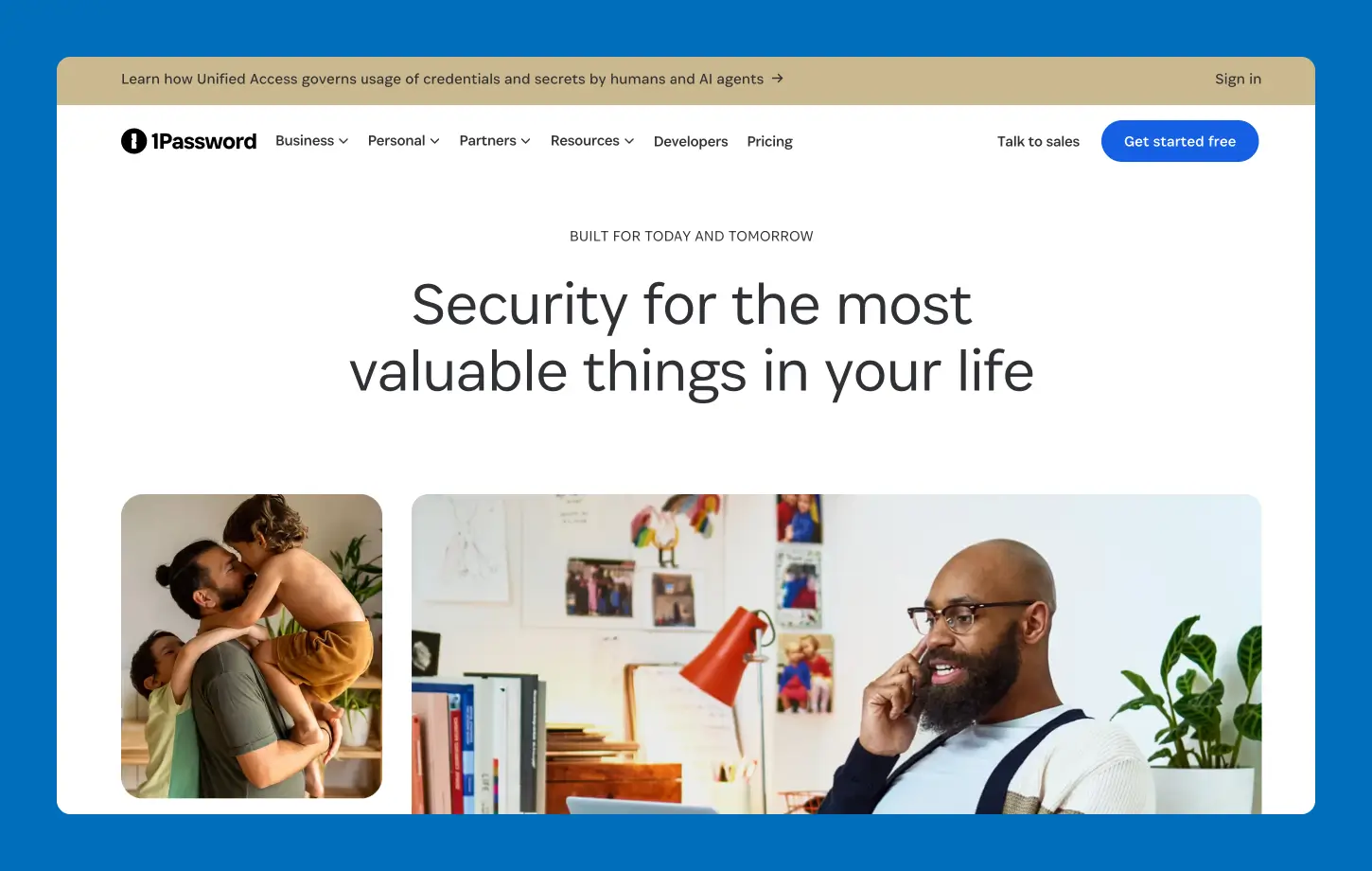
1Password is a well-known password manager built for individuals and families who want strong security with simple sharing. It works well for households that need shared vaults, account recovery and easy access across devices. If you want a polished and reliable option, it’s a strong pick for the best password manager for family use.
Its Travel Mode feature can temporarily remove sensitive information from your devices when you travel. It also offers secure sharing through family vaults and lets a designated “family organizer” manage accounts and help recover access if someone gets locked out. The interface is clean, and setup is quick.
People like how smooth everything feels once it’s running. Sharing logins is simple, and recovery tools reduce panic when someone forgets a password. It keeps daily logins quick while still giving you control over access and security. That said, it doesn’t offer self-hosting and can feel a bit pricey compared to some alternatives.
Key features:
- Travel Mode to hide sensitive vaults on devices
- Shared family vaults for secure access
- Family organizer role for account management and recovery
- Strong encryption with a secret key system
- Cross-platform support with autofill
Pricing
1Passwords offers four plans, with its family password manager plan costing $4.49/month.
3. RoboForm: Best for Handling Forgotten Passwords
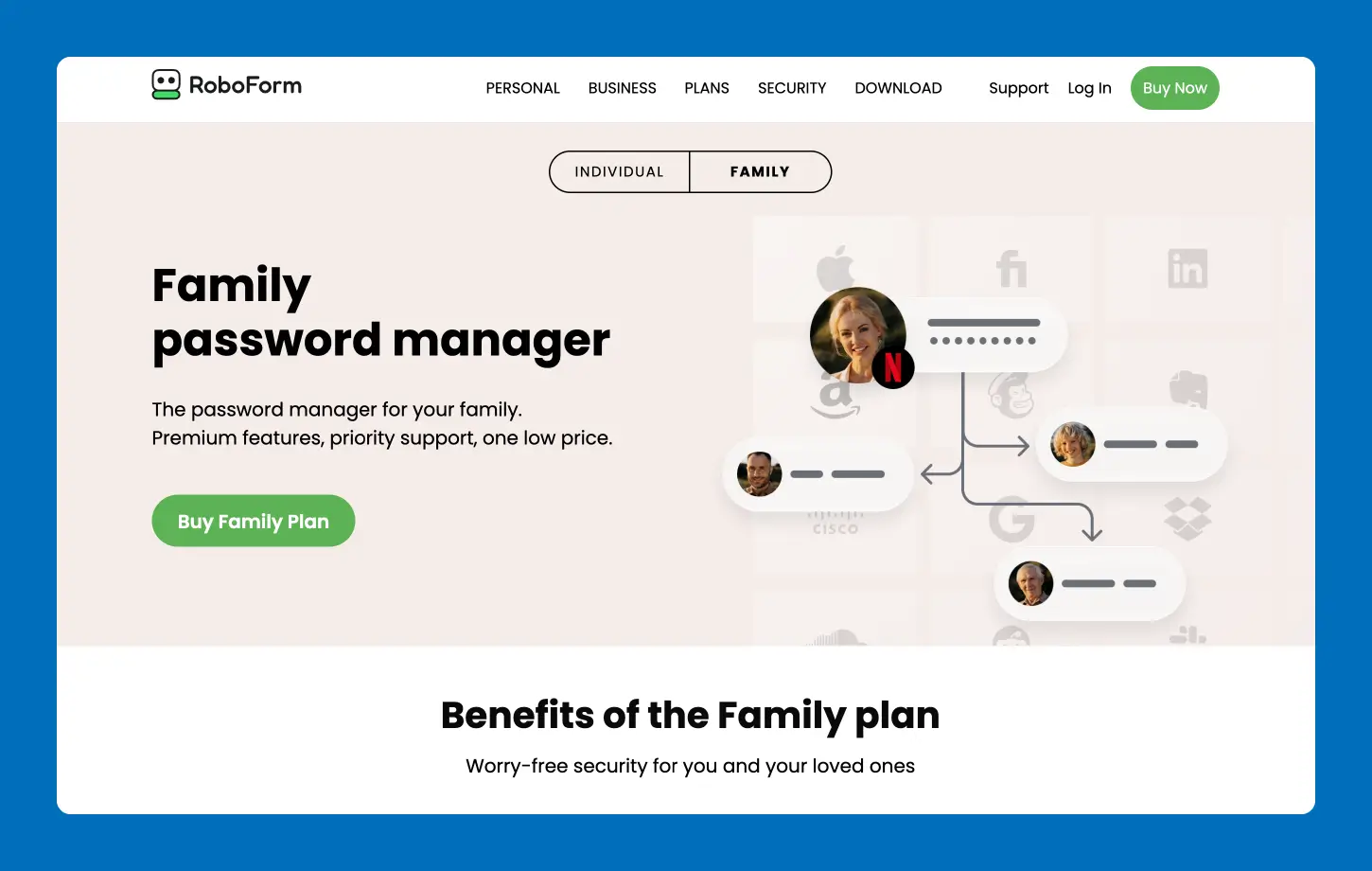
RoboForm is a long-standing password manager designed for people who frequently encounter login issues or have messy password habits. It works well for families that want something simple, affordable and reliable. If you’ve ever forgotten your password (or reset it five times in a week), RoboForm stores everything and makes it easy to access.
Its one-click login and strong autofill are among the best, which saves time on everyday use. It also includes secure sharing, breach monitoring and emergency access for family members. The family plan covers up to 5 users under a single subscription, making it a budget-friendly choice.
People like how dependable it feels once set up. Users can save, autofill and sync passwords with minimal effort. It reduces login stress across devices and helps families avoid constant resets and lockouts. One drawback is that the interface can feel a bit dated compared to newer tools.
Key features:
- One-click login and advanced autofill
- Secure shared folders for families
- Password generator and audit tools
- Data breach monitoring alerts
- Emergency access for trusted contacts
Pricing
RoboForm is a free family password manager, but its free plan comes with limited features. Its Family plan unlocks all features and costs $2.66/month for the first year.
4. NordPass: Best for Simple and Affordable Family Security
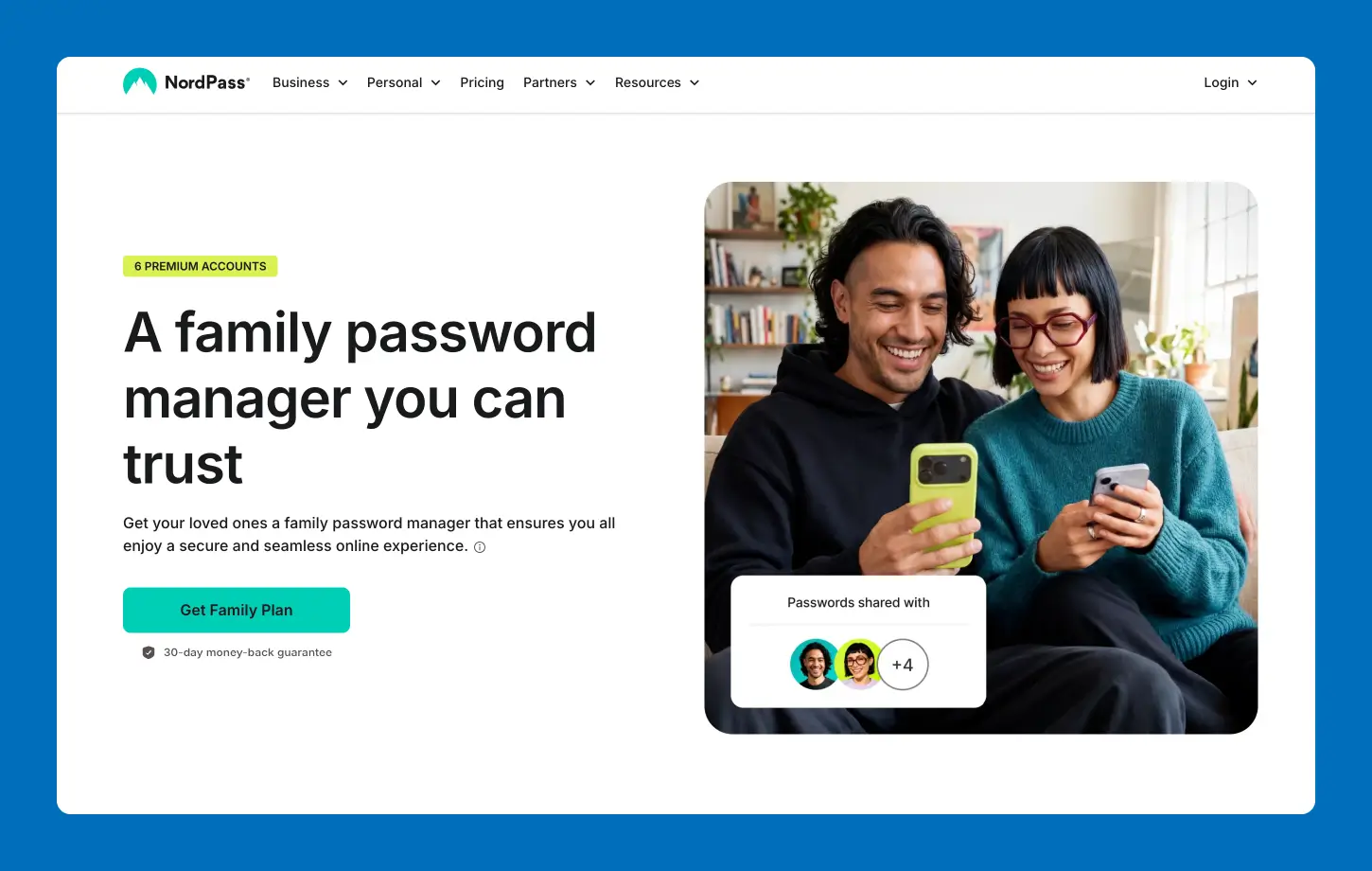
NordPass is a modern password manager built for families who want strong security without a steep learning curve. It’s a good fit for households that need separate accounts but still want easy sharing and centralized control. If you want something clean, fast and reliable, NordPass is a solid choice.
Its strong encryption (XChaCha20) and zero-knowledge setup keep your data private even from the provider. The family plan includes up to six separate vaults, so each person gets their own space while still being able to share passwords safely. It also includes breach monitoring, password health checks and secure sharing.
People like how easy it is to use right away. Passwords sync across devices, autofill works smoothly and sharing access doesn’t feel complicated. It keeps daily logins quick while quietly improving your family’s security in the background. That said, NordPass restricts the free version to a single active device, and some advanced features are only available in paid plans.
Key features:
- Separate vaults for up to 6 family members
- Secure password sharing
- Data leak and breach monitoring and password health reports
- Strong encryption with zero-knowledge architecture
- Autofill and cross-device sync
Pricing
NordPass’s Family plan costs $2.69/month for the first 24 months.
5. Keeper: Best for Advanced Security and Device Protection
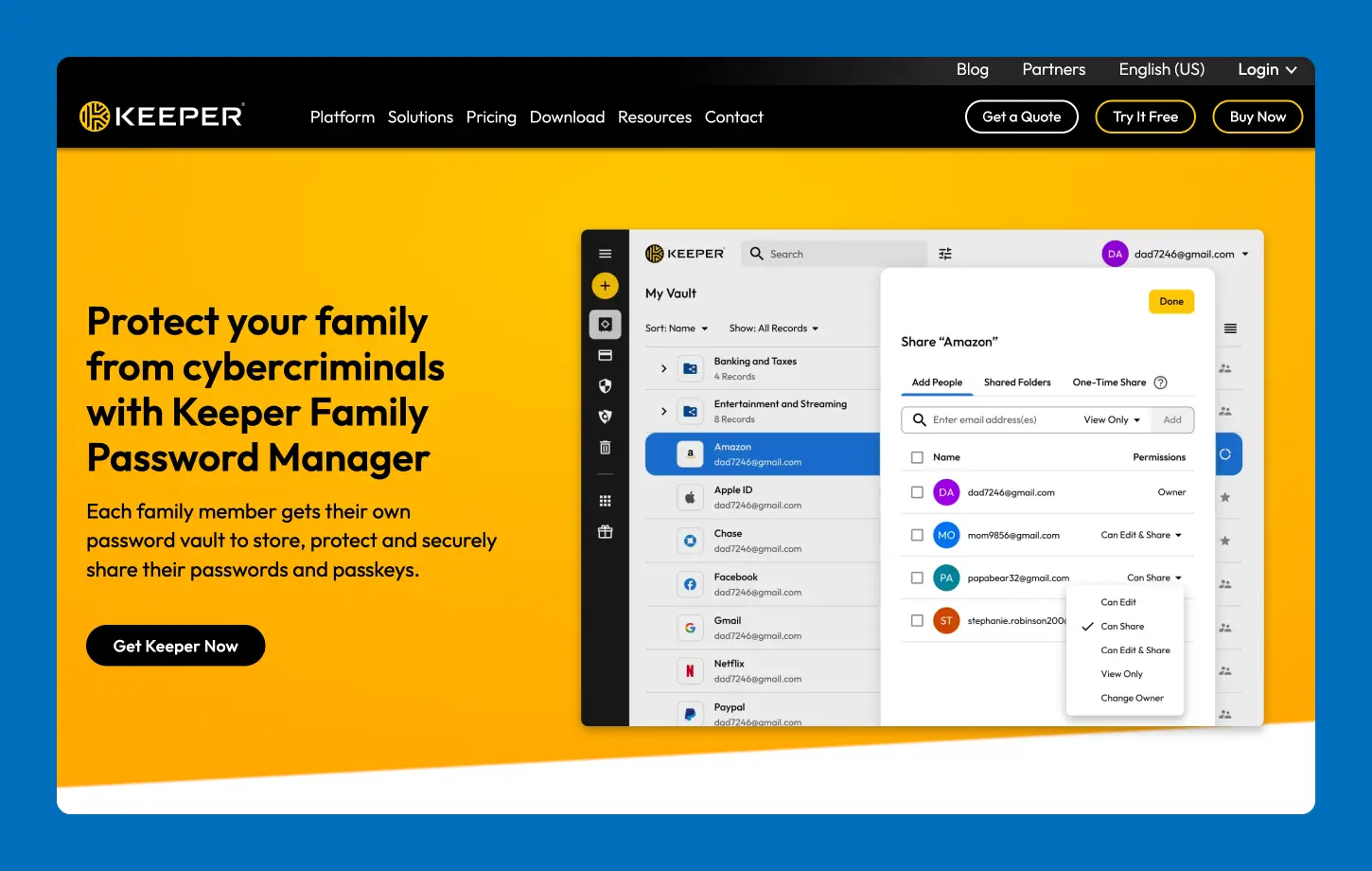
Keeper is a powerful password manager built for families that want strong protection across all their devices. It’s a good fit for households that store more than just passwords, like files, payment details and sensitive info. If your goal is to secure your devices and logins, Keeper offers a more security-focused setup.
Its zero-knowledge encryption and detailed sharing controls offer maximum protection. Each family member gets their own private vault, and you decide exactly what gets shared and with whom. It also supports unlimited devices, strong password generation and secure file storage.
People like how secure everything feels without making daily use harder. Once set up, passwords are filled in automatically, and access sharing is controlled and safe. On the downside, some advanced features, like breach monitoring, may come as add-ons, which can increase the total cost.
Key features:
- Private vaults for each family member
- Secure sharing with permission controls
- Unlimited devices and syncing
- Strong password generator and autofill
- Secure file storage (up to 10GB)
Pricing
Keeper’s Family plan costs $7.08/month and includes five private vaults.
6. Bitwarden: Best for Budget-Friendly Family Plans
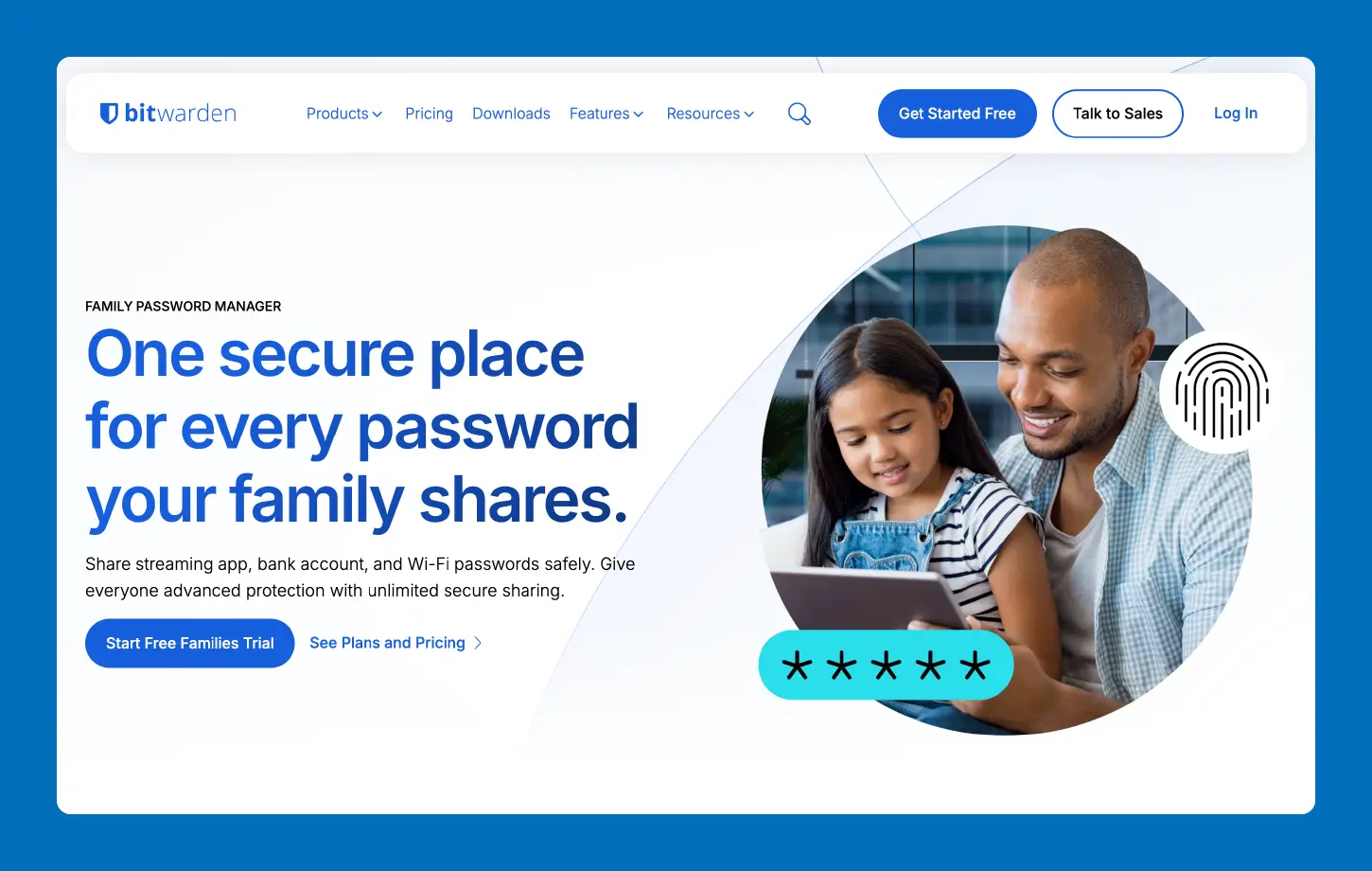
Bitwarden is a simple and secure password manager built for families who want strong protection without spending much. It’s a great fit for households that need reliable sharing, unlimited storage and support across devices. If you want solid security at a low price, Bitwarden is an easy pick.
It follows an open-source approach, and even the free plan includes unlimited password storage and device sync. The family plan supports up to six users, each with premium features like secure sharing, password health reports and 2FA. It also offers a self-hosting option for users who want more control.
People like how dependable and low-cost it is. Once you save everything, logins become quick and stress-free. Sharing passwords within the family is simple, and it helps reduce resets and confusion without adding complexity. But the interface feels basic compared to some polished competitors, and setup can take a bit more effort for beginners.
Key features:
- Unlimited password storage and device sync
- Secure sharing for up to six family members
- Built-in password generator and health reports
- 2FA and encrypted file storage
- Open-source with optional self-hosting
Pricing
Bitwarden’s Families plan costs $3.99/month and includes a 7-day free trial.
7. Dashlane: Best for Built-in VPN and Extra Security Tools
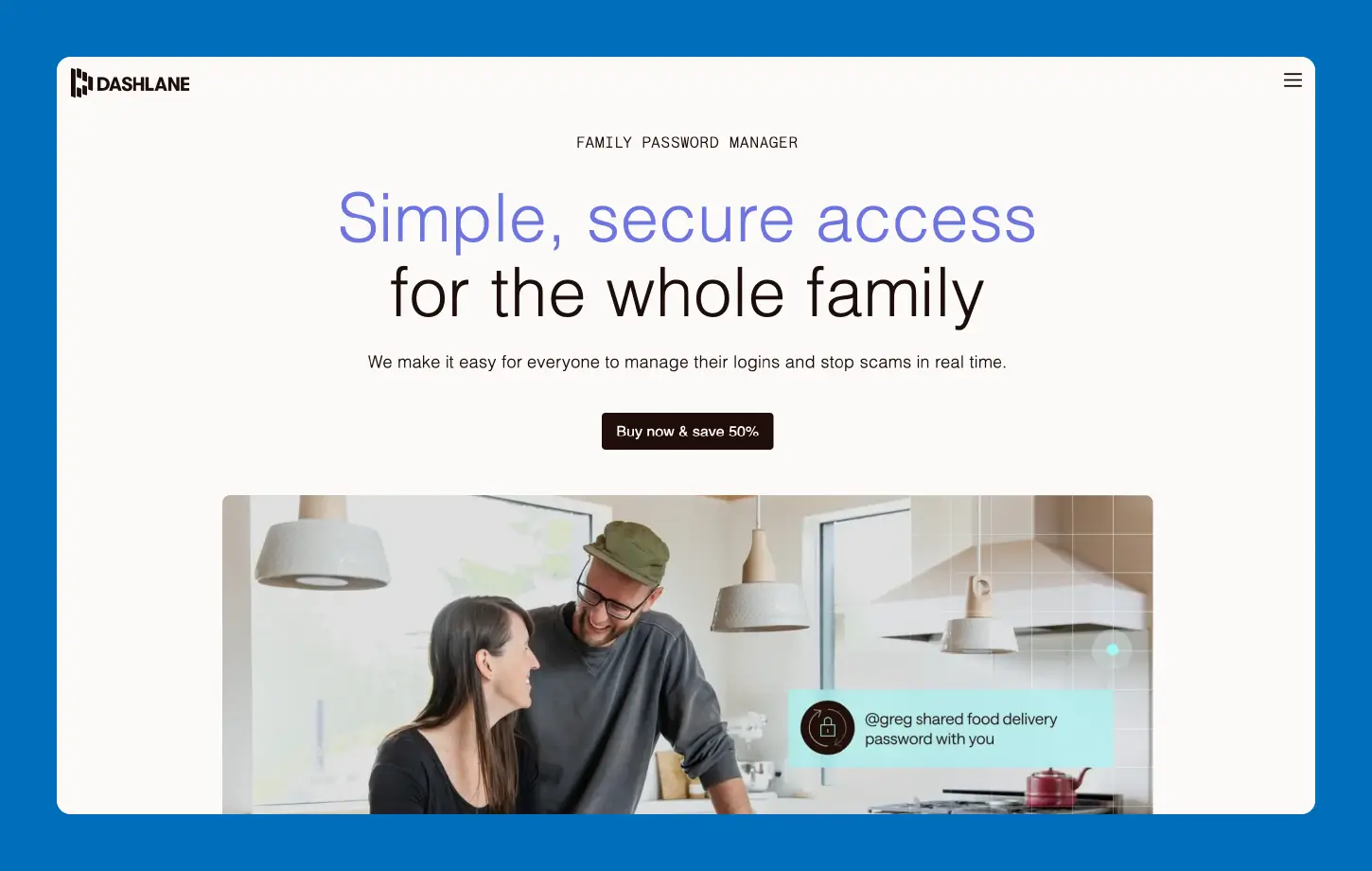
Dashlane is a premium password manager built for families who want more than just password storage. It works well for households that care about online privacy and login security. If you want an all-in-one tool that covers passwords and browsing safety, Dashlane is a strong option.
Along with password management, it includes features like a built-in VPN, dark web monitoring and real-time phishing alerts. The family plan supports up to 10 members, each with their own private vault, while still allowing secure sharing when needed. It also offers password health insights to help improve weak or reused passwords.
People like how much it covers in one place. You don’t need separate tools for password safety and public Wi-Fi protection. Once set up, it handles logins smoothly and monitors risks in the background. One downside is pricing — it’s on the higher side, and only the plan manager gets VPN access in the family plan.
Key features:
- Private vaults for up to 10 family members
- Built-in VPN for safer browsing (admin account)
- Dark web monitoring and phishing alerts
- Password health dashboard and generator
- Secure sharing and autofill across devices
Pricing
Dashlane’s Friends & Family plan costs $4.07/month for 10 members.
8. LastPass: Best for Easy Setup and Familiar Interface
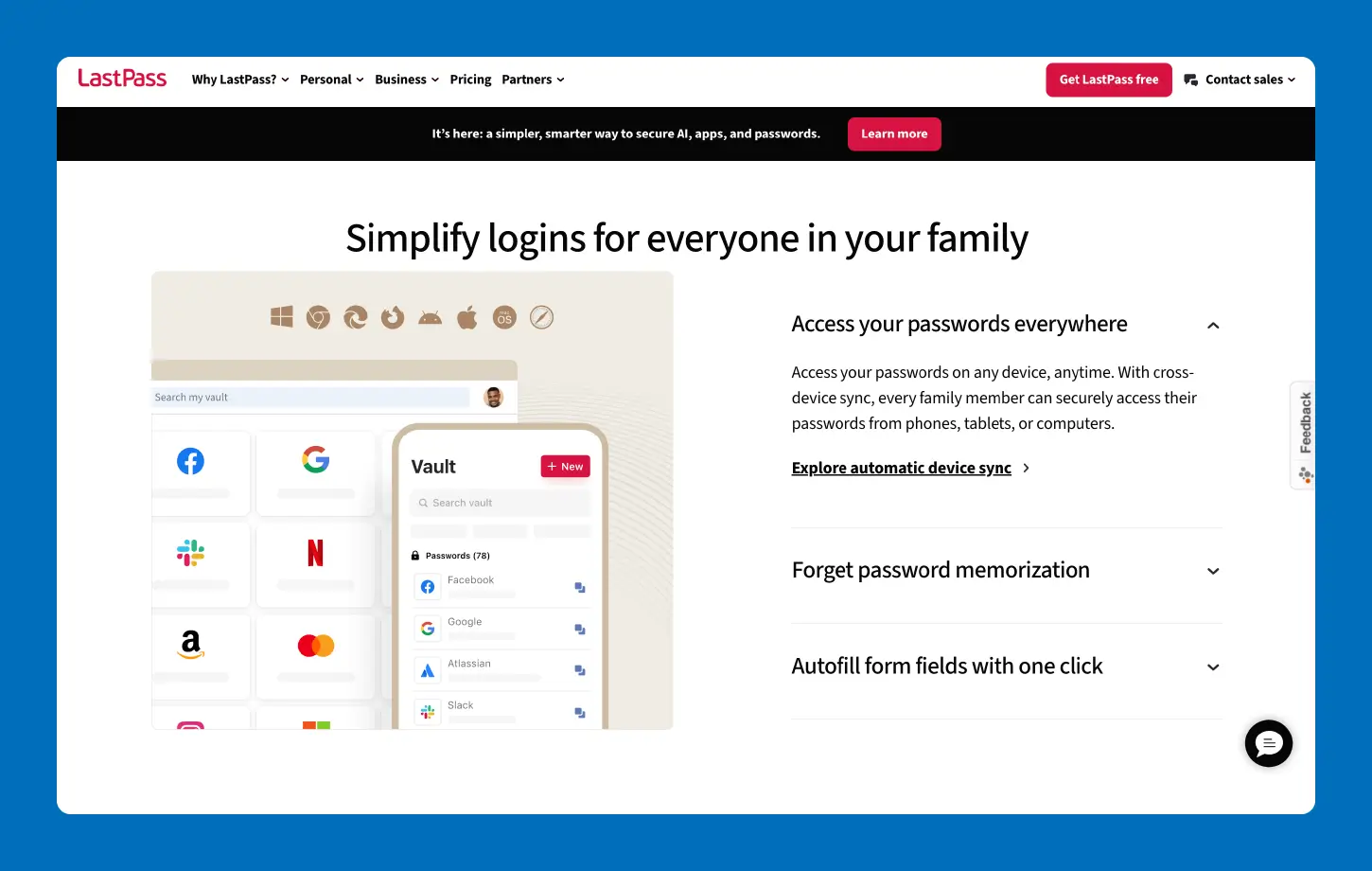
LastPass is a widely used password manager built for families who want something simple and quick to start. It works well for households that need shared access without a steep learning curve. If you want a familiar tool that gets the basics right, LastPass is a solid option.
The family plan includes up to six individual accounts, each with a private vault, plus shared folders for common logins like streaming or Wi-Fi. It also offers features like autofill, password generation, emergency access and MFA. Everything syncs across devices so that everyone can log in without hassle.
People like how quickly they can get started. You can automatically save passwords, and the dashboard makes it easy to manage family access. It’s a practical choice for everyday use, with minimal setup. One drawback is its past security incidents, which have made some users cautious, even though the platform continues to improve.
Key features:
- Six individual accounts with private vaults
- Shared folders for family logins
- Autofill and password generator
- Emergency access for trusted users
- Multi-factor authentication
Pricing
LastPass has five plans for its password management services, with its Families plan costing $2.80/month. You can try it out for free for 30 days.
9. Total Password: Best for Low-Cost Basic Protection
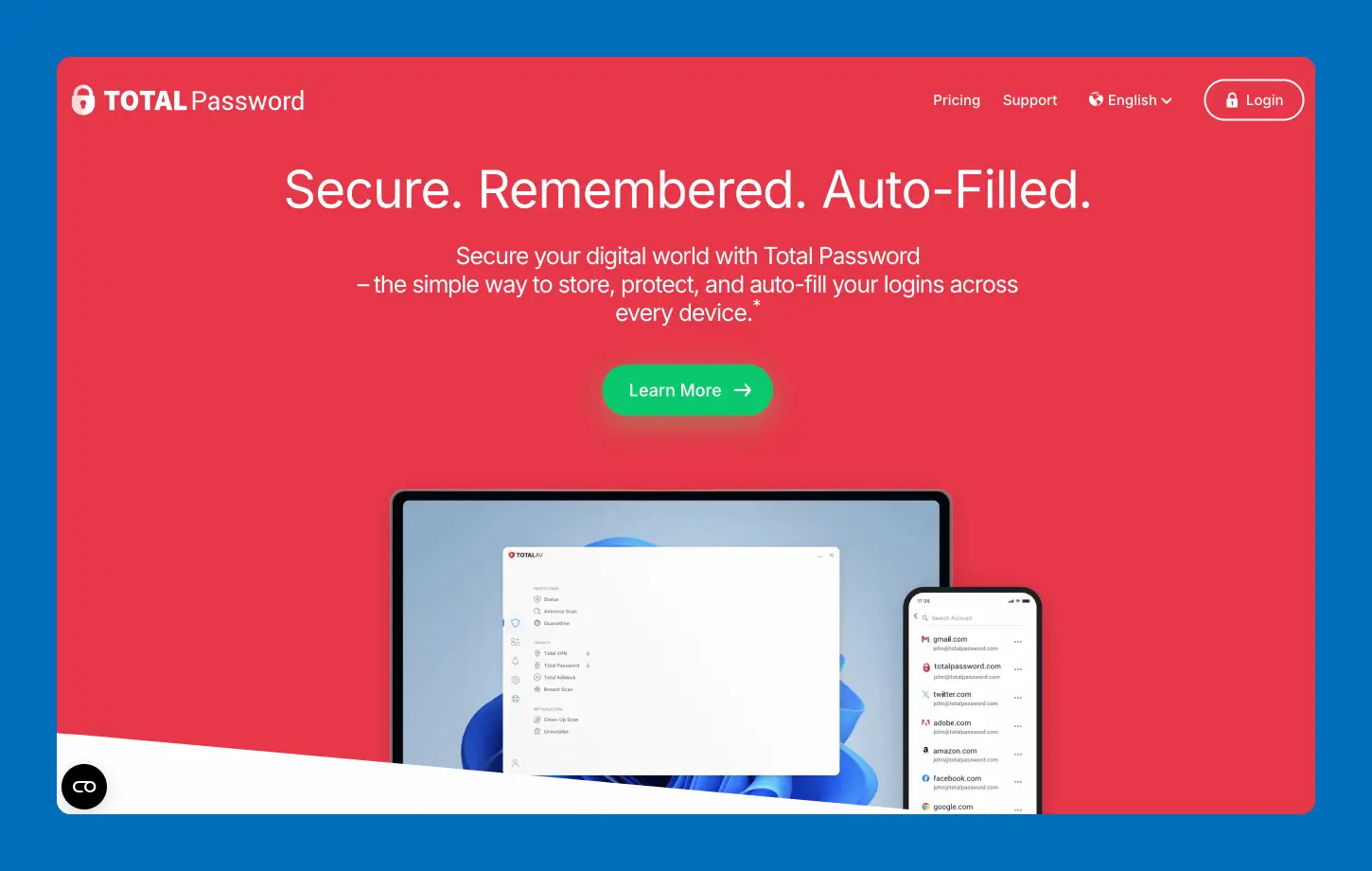
Total Password is a simple password manager built for individuals or small households that want an easy way to store and autofill logins. It works best for users who don’t need advanced sharing features and just want a clean, no-fuss setup across devices.
Total Password has a low entry price and offers a smooth experience. It covers the basics well, including secure password storage, autofill, password generation and AES-256 encryption. It also includes a security report to flag weak passwords.
People like how simple it feels once installed. Passwords save automatically, logins are quick and everything syncs across devices. It’s useful for everyday use, but families may find it limiting if they need shared access or group controls. It also lacks key family features like secure password sharing and a proper multi-user family plan.
Key features:
- Secure password storage with AES-256 encryption
- Autofill and autosave for logins
- Built-in password generator
- Security report for weak or reused passwords
- Multi-device access and sync
Pricing
Total Password costs $119/year (roughly $9.9/month) and offers a 30-day money-back guarantee for annual and biannual subscriptions. It also offers a 14-day money-back guarantee for monthly, quarterly and add-on services.
10. Aura: Best for All-in-One Digital Safety for Families
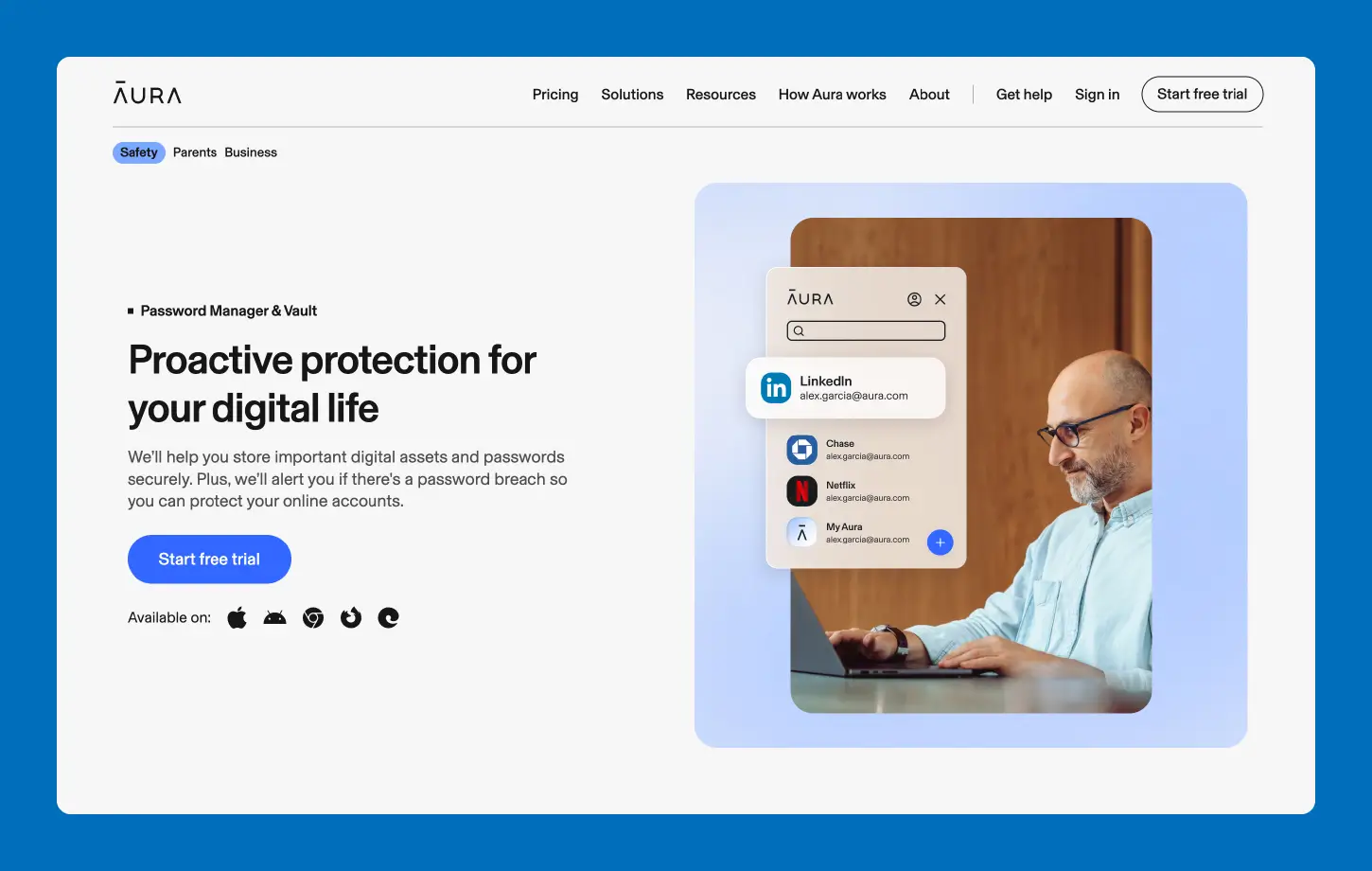
Aura is more than a password manager. It’s a full digital security suite built for families who want everything in one place — passwords, device protection, and identity safety. It works well for households that want broader protection without juggling multiple apps.
Along with password management, you also get antivirus, a VPN and identity theft protection in the same plan. It stores and generates strong passwords, alerts you if they’re weak or exposed and even helps update them. Family plans also include parental controls and monitoring tools, which add an extra layer of safety for kids online.
People like how everything runs in the background. Passwords save and autofill easily, while the extra tools handle threats, scams and risky activity. It reduces the need for multiple apps. However, it’s not a standalone password manager. Most value comes from the full bundle, which may feel like more than some families need.
Key features:
- Password storage, autofill and generator
- Alerts for weak, reused or compromised passwords
- Built-in VPN and antivirus protection
- Identity theft monitoring and alerts
- Parental controls and family safety features
Pricing
Aura’s family plan costs $32/month, and the couple’s plan costs $22/month.
Honorable Mentions
A few family password managers didn’t make our main list, but they are still worth a look. Here are some honorable mentions you may want to check out:
- Proton Pass: This is a privacy-focused option with end-to-end encryption and open-source transparency. The family plan costs $4.99/month and supports up to six users with shared vaults and secure password sharing.
- McAfee: It comes bundled with its broader security suite, including antivirus and identity protection. McAfee’s pricing starts at $69.99/year, and it’s a good fit if you want password management as part of an all-in-one security setup.
- LogMeOnce: This one is known for its passwordless login options and additional security features, such as photo login and biometrics. Its family plan costs $4.99/month, and it offers flexibility but can feel feature-heavy for beginners.
- Enpass: Costing $2.99/month, Enpass is a strong offline-first password manager that stores data locally instead of the cloud. It’s a good choice for those who want more control, though it may need more manual setup.
Key Features to Look for in a Family Password Manager
The password manager you choose must keep your passwords safe, must be easy to use and must be accessible to the right people.
Here are the features that matter most:
- Single vs multi-user accounts: A single account is great if you have less tech-savvy family members or don’t want to jump between accounts to manage passwords. Consider this over multi-user accounts, especially if you have younger kids.
- User limits that match your family size: Some multi-user providers cap how many people you can add. Make sure it covers your household now — and maybe one extra for the future.
- Shared vaults for household logins: If you have multi-user accounts, a shared space where everyone can access common accounts like Wi-Fi, streaming services and utility logins. No more asking around for passwords.
- Private vaults for each person: In multi-user accounts, each family member should have their own secure space for personal accounts, like email or social media. Shared doesn’t mean everything is visible.
- Cross-device support: It should work on Windows, macOS, Android, iOS and browsers. If it doesn’t run on your family’s devices, it won’t get used.
- Easy setup and simple interface: The tool should feel natural to use. If it’s clunky, people stop using it. It should also be easy to integrate password managers with other tools your family already uses.
- Autofill for quick logins: saves time and avoids password copy-pasting. This feature is great for kids or anyone who isn’t tech-savvy.
- Secure sharing controls: It lets you decide who can view or use a password. Some tools allow view-only or limited access for extra safety.
- Emergency access: This is a must-have. It allows a trusted family member to access accounts if someone is locked out or unable to log in. For heads of household, this can prevent serious access issues during emergencies.
- Security auditing and password strength checks: Tools that scan for weak or reused passwords help you fix risks early. It’s a good idea to regularly check the security of your password and improve it when needed.
- Strong encryption and breach alerts: Look for end-to-end encryption and alerts if your data appears in a breach. This keeps your family one step ahead of potential threats.
Even a free password manager for family use should cover the basics, but pick one that offers the features above for maximum security.
Protect Your Family’s Passwords With Panda
Keeping track of passwords shouldn’t feel like a daily chore. Panda Dome Password Manager helps bring order to the chaos by storing all your logins in a single secure account. It helps you create strong passwords, fills them in automatically and keeps everything protected with strong encryption. This means your family no longer has to rely on memory or risky habits.
With a single account, Panda Dome Password Manager makes sharing easy, allowing the account holder to track when passwords are exposed without dealing with extra kids’ accounts. You can use it as a standalone tool or as part of Panda Dome plans that include extra protection like antivirus and parental controls. It’s a flexible family password manager that grows with your needs.
Make password management easier for your family with Panda Dome Password Manager — a standalone or part of Panda Dome.
Family Password Manager FAQ
Choosing the right tool can raise a few questions, especially when you’re managing logins for multiple people. Here are answers to some frequently asked questions about family password managers to help you decide which password manager is best for your family.
What Is the Best Way to Share Family Passwords?
The safest way is through a password manager with shared vaults or secure sharing features. This lets you share access without revealing the actual password in texts or notes. You can also control who can view or use each login.
What Is a Passkey?
A passkey is a newer, password-free way to sign in using biometrics like your fingerprint or face, or a device PIN. It’s more secure than passwords because it can’t be reused or stolen in the same way, and it works across supported apps and websites.
How Many People Can Use One Family Password Manager?
Most family plans support between five and 10 users, each with their own private vault. Some tools also let you add extra members for an additional cost.
Can My Family Members See My Private Passwords?
Family password managers separate shared and private vaults, so your personal accounts stay hidden unless you choose to share them. You stay in control of what others can access.
Is It Safe for Kids to Use a Family Password Manager?
Yes, it’s safe for kids to use family password managers. In fact, it’s a smart way to build good habits early. These tools help kids use strong, unique passwords and avoid lockouts on school or gaming accounts. They also support better cybersecurity for kids by reducing risky behavior like password reuse.
How Does a Family Password Manager Improve Online Security?
A family password manager improves online security by helping you create strong, unique passwords for every account and store them securely. This reduces the risk of breaches caused by reused or weak passwords. Many tools also alert you if your data is exposed.
What Happens If I Forget My Master Password?
Most password managers don’t store your master password, so it can’t simply be recovered. However, many offer account recovery options like emergency access, recovery keys or trusted contacts to help you regain access.
Which Password Managers Have Never Been Hacked?
No system can guarantee it will never be targeted. However, many password managers use zero-knowledge encryption, which means even if data is exposed, it remains unreadable without your master password. Strong security practices matter more than past incidents.