
Finding out that your computer or laptop is infected with a virus is scary.
You might have crucial data stored on the hard drive, irreplaceable photographs or a current project that was left unsaved. Viruses, many of which are caused by malware, can significantly impact your device’s performance and even threaten the security of your personal information and data.
While antivirus software provides additional protection for your devices, you still need to be aware of viruses and how to remove them. Viruses are not a one-size-fits-all issue, and each can affect the performance of a phone or computer in various ways.
If you think your device is infected, our guide can help you get rid of a virus on your computer and restore your device’s productivity.
What Is a Computer Virus?
A virus is usually a piece of malicious code that changes how a device functions. Viruses can be transmitted from device to device via infected attachments or links, and they typically attach to and hide behind previously installed programs. Some viruses are referred to as worms, and these infections can spread to other devices without human interaction.
Many malware viruses use social engineering to attract and trap users, while others disguise themselves as helpful programs before penetrating an entire system — take, for instance, the heuristic virus.
Other types of viruses are common, including:
- File-infecting viruses
- Macro viruses
- Overwrite viruses
- Polymorphic viruses
- Resident viruses
Signs of a Computer Virus
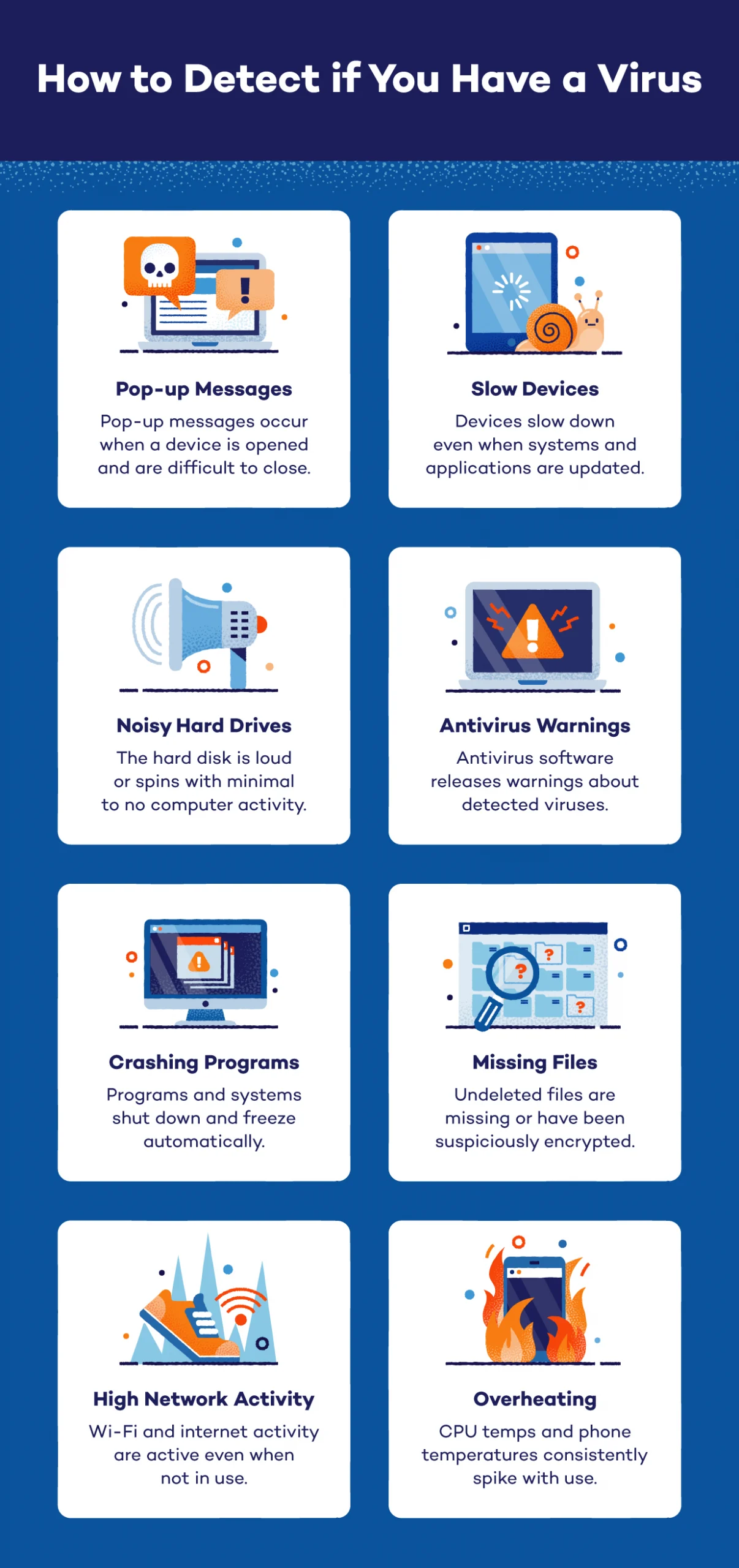
Before you begin the virus removal process, double-check that your device’s symptoms are characteristic of viruses. A few telltale signs that your computer or phone may be infected are:
- Pop-up messages are appearing. If pop-up messages appear every time you use your device or they are hard to close out of, you may have a virus. Never click on a suspicious pop-up if you think your device may have a virus, even if it’s a virus warning.
- Your device is running slowly. Make sure all of your applications and systems are up to date. If you are unable to increase its speed, it may be experiencing side effects from a virus that is hijacking your device.
- Your hard drive is making noise. If your hard disk makes continuous noises or spins with little to no computer activity, your device could have a virus.
- Programs are continually crashing. If programs start and close automatically, or your system randomly shuts down or freezes, your device could be infected with a virus.
- You have missing files. If you are missing files that you know were not deleted, this may be due to malware. Some malware deletes, moves or encrypts files so you cannot open them.
- High network activity. If your Wi-Fi or internet activity is active even when you are not using it, a virus could be infiltrating your internet to send and steal information.
- Your device overheats. If your device has a virus, it is most likely working overtime to keep things running smoothly. This can cause overheating in phones and computers. Keep an eye on your CPU temps and how hard your device’s fans are working.
- Warnings are being released by your antivirus software. If you have antivirus software installed, don’t ignore its warnings. This could be a sign that your device is compromised.
How to Get Rid of a Virus on Your Windows Computer
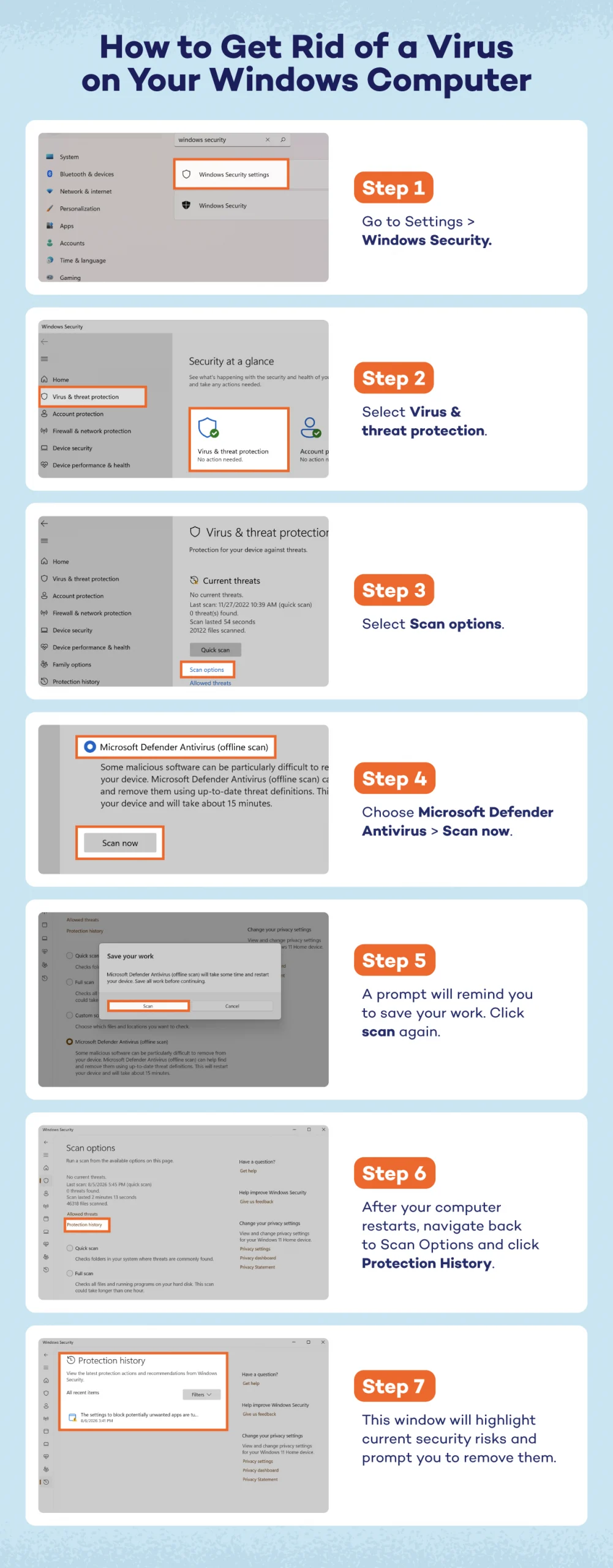
If you believe your computer may be compromised by a virus, your next step is to remove it. You will need to use Windows Security to remove the intruder.
- Open Windows Security. This can be accessed from the settings menu.
- In the left panel, select Virus & threat protection.
- Select Scan options.
- Choose Microsoft Defender Antivirus and then select Scan now.
- A prompt will remind you to save your work. Click Scan again.
- After your computer restarts, navigate back to Scan Options and click Protection History.
- This window will highlight current security risks and prompt you to remove them.
- Choose to Delete all temporary files.
- Hit Remove files. In regular mode, restart your computer.
While most Windows systems have antivirus and antimalware software already installed, you may want to investigate your device’s protections and consider installing an antivirus system to help protect your device in the future.
How to Get Rid of a Virus on a Mac
While many people believe they cannot get viruses on Macs, these devices can also be infected. There are a variety of viruses posing as Mac antiviruses — including MacDefender and MacSecurity — that are malicious and dangerous. If your Mac has been infected, here is how to clean malware on your Mac.
- Navigate to the Applications Folder in Finder.
- Move any offending applications to Trash. After moving applications to trash, navigate back to Finder.
- Select Go in the top menu, then select Go to Folder in the dropdown.
- Enter “/Library” in the search field and click Go. Drag any related or suspicious folders to the Trash.
- Empty the Trash.
- Next, you’ll open the Launchpad by clicking the icon with multiple tiny colorful squares in the bottom toolbar.
- In the search field, type Activity Monitor and launch the program.
- Go to the CPU tab to view all running processes. Keep an eye out for any unfamiliar or suspicious process names by clicking the X in the top left corner.
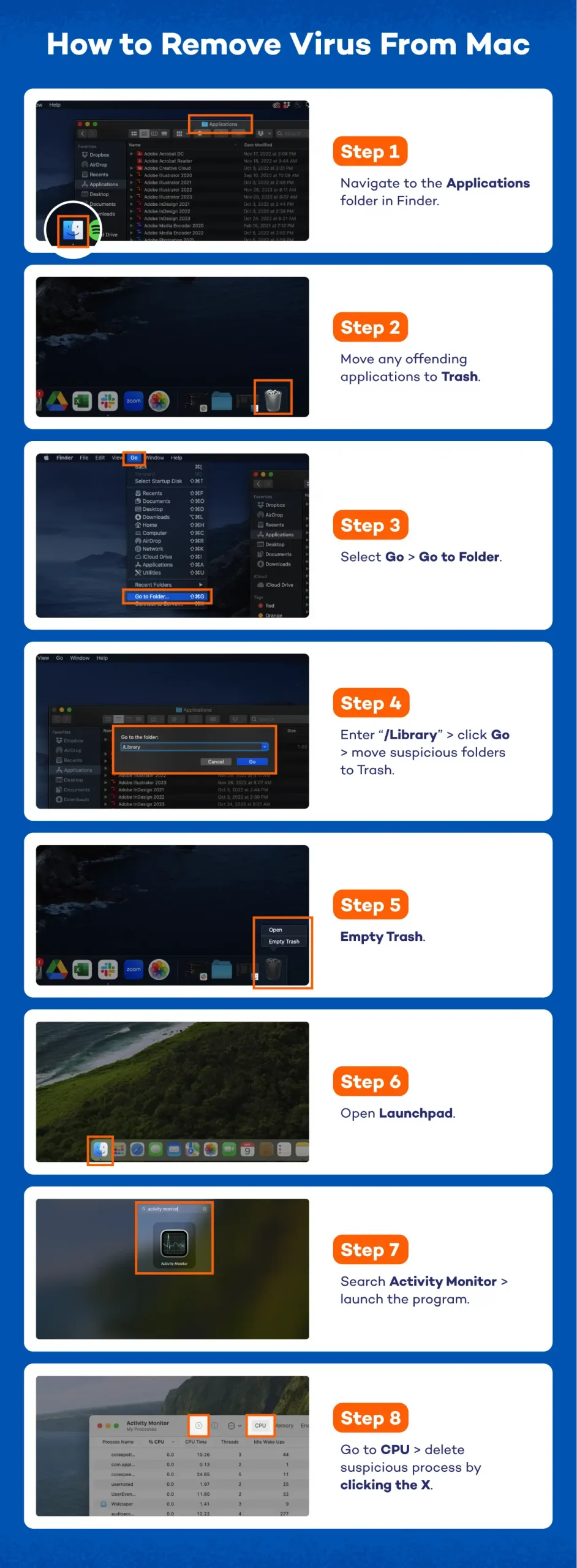
- If you identify a process that appears to be malware, select it, then click the gray X in the top-left corner of the Activity Monitor. Click Force Quit to terminate the process.
These are just a few simple ways to delete viruses from a computer without antivirus software. If your computer has a virus that originated from a browser extension, you will need to delete these as well.
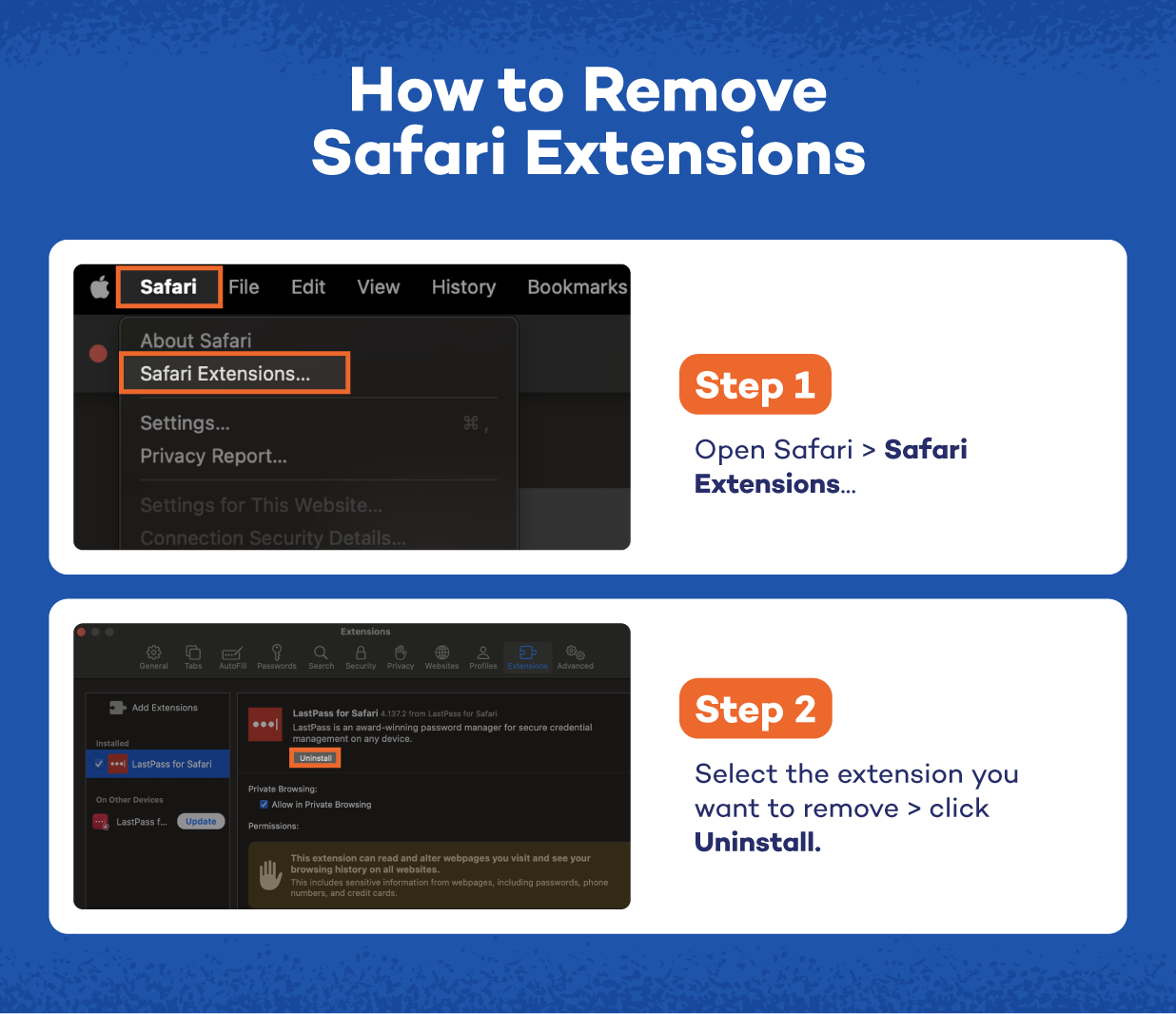
Removing Extensions on Safari:
- Open Safari and select Safari Extensions… from the top dropdown menu.
- Here is where you will uninstall suspicious extensions. These could have been added by you or a piece of malware.
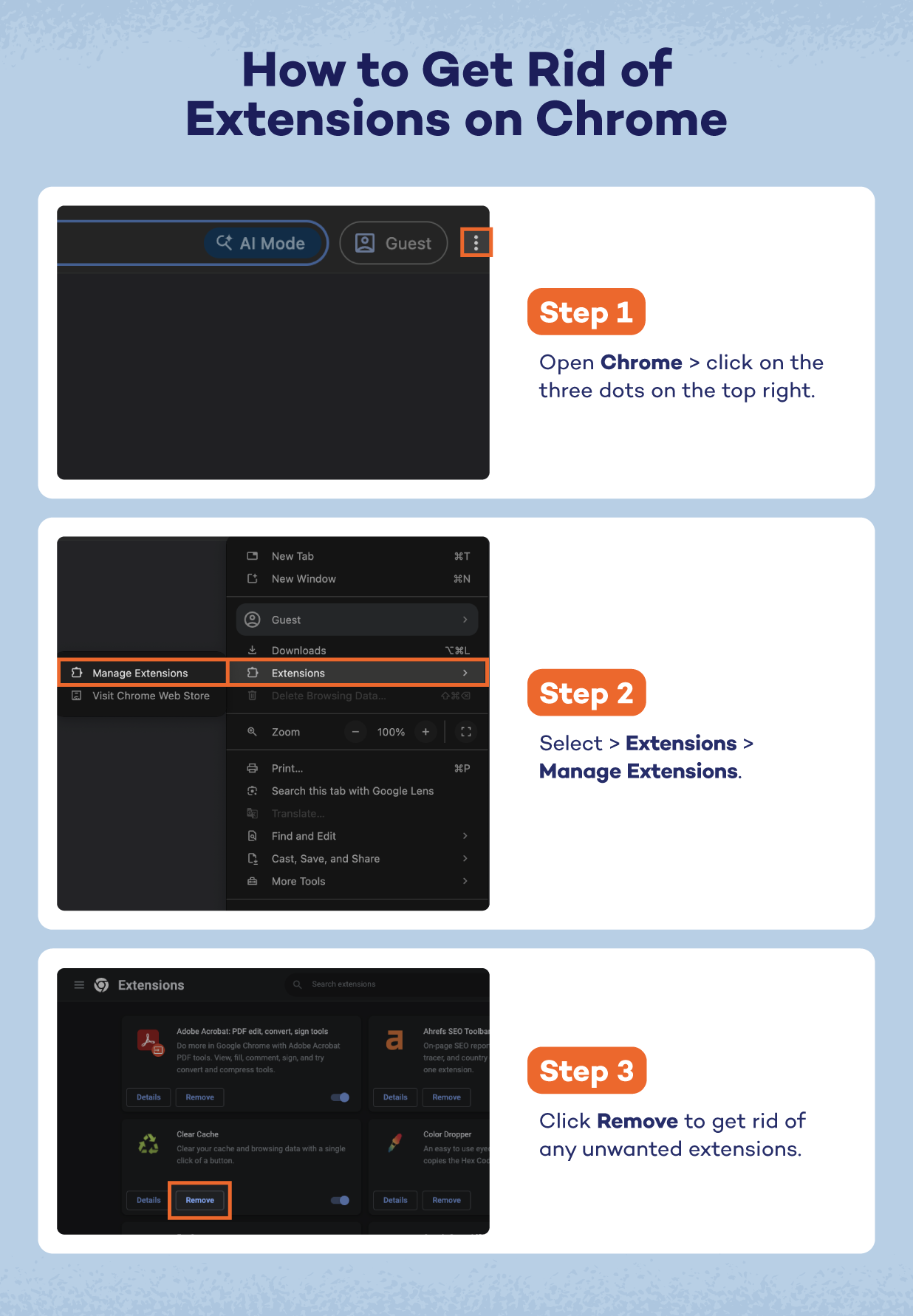
Removing Extensions on Chrome:
- Open Chrome and navigate to the three dots in the upper-right-hand corner.
- Select Extensions and then Manage Extensions.
- In the new screen, you can click Remove on any suspicious extensions.
To prevent viruses, be sure to download a secure Mac antivirus system on your computer. Additionally, it’s important to update your software as often as you can and back up your data regularly to ensure you do not lose previous files if you are ever infected with a virus.
How Does Your Computer Get Infected With a Virus?
Viruses are a common threat to computer systems, capable of causing significant damage to data, software and even hardware. Understanding how these harmful programs gain access to your computer is crucial for maintaining a secure system.
Here are some of the most common ways a computer can get infected with a virus:
- Email attachments: Opening email attachments from unknown or suspicious sources can lead to infection. Malicious attachments can contain viruses or other types of malware designed to compromise your system as a part of phishing scams.
- Infected downloads: Downloading files or software from untrustworthy websites can be risky. Hackers often hide viruses within seemingly harmless downloads like freeware, shareware or cracked software.
- Compromised websites: Visiting malicious or compromised websites can lead to automatic downloads of harmful software. These sites often use scripts or pop-ups to infiltrate your computer without your knowledge.
- Vulnerabilities in software: Operating outdated systems can have security flaws that allow viruses to enter. Hackers exploit these vulnerabilities to inject malicious code into your system.
- Removable media: Inserting infected USB drives or other removable media into your computer can introduce viruses. These devices may carry malware from other systems they’ve been connected to.
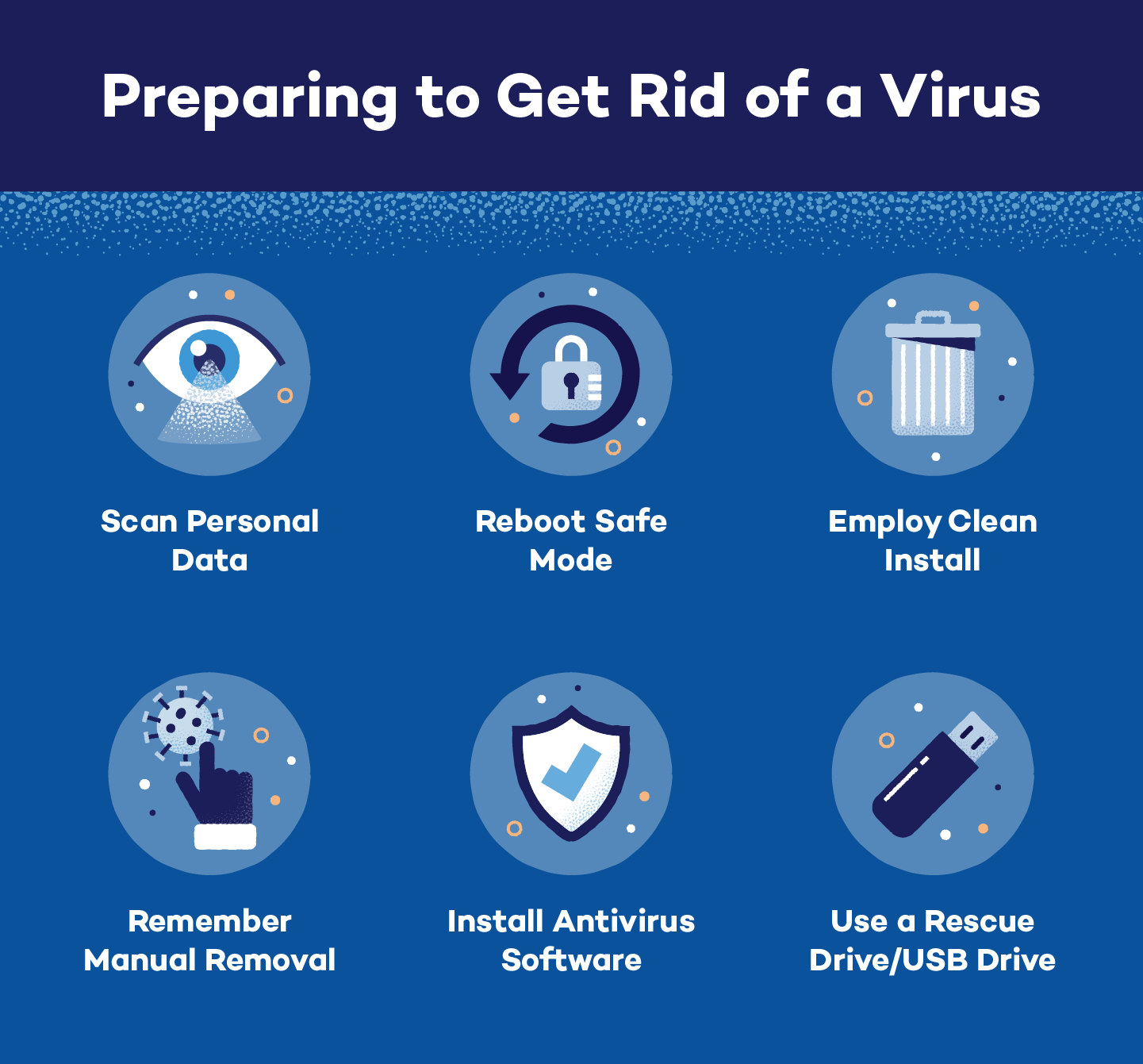
6 Tips to Prepare for Virus Removal
Even after you’ve detected a virus, there’s preparation to be done before jumping into virus removal. To ensure that all internal and external files have been cleaned, it’s important to account for every possible removal method and prepare your devices to remove a virus.
- Scan personal data: Before beginning the virus removal process, scan all your personal data for viruses. This will ensure that viruses aren’t accidentally reinstalled after the removal process. Scanning tools like the Panda Cloud Cleaner can help disinfect your PC quickly.
- Reboot Safe Mode: A virus can only access your device when it’s running. When placed in Safe Mode, your device will only load the essential files, which can prevent viruses from starting.
- Use a rescue USB drive or rescue disk: A rescue USB drive allows you to scan a device without starting it. This helps contain viruses and provides you with an additional safe space to scan for them.
- Don’t forget manual removal: You may need to view and delete program files to remove a virus. If you feel comfortable, download Autorun, which lets you see exactly what is operating on your computer and how to get rid of it. This type of virus removal can be overwhelming, so be sure you’re prepared to determine the legitimacy of your programs before beginning.
- Employ clean install: If all else fails, it’s possible to resort to a clean install. A clean install deletes everything on your hard drive and almost always guarantees the removal of viruses and malware. You will have to reinstall all programs, but it can save your computer from further infiltration and destruction due to viruses.
- Install antivirus software: Make sure to install an antivirus system that also protects against ransomware, as programs with both can detect threats that an antivirus alone cannot detect.
How to Avoid Installing a Computer Virus
Computer virus removal is only half the battle. Keeping one from coming back is what protects your files, photos and passwords in the long term. A few consistent habits go a long way toward computer virus protection, even if you’re not especially tech-savvy.
- Use core security tools: Turn on your device’s built-in firewall and keep antivirus and antimalware software running in the background. Each one is built to catch different kinds of threats.
- Install a trusted antivirus: A trusted antivirus program scans files in real time and can block a virus before it ever reaches your hard drive. That’s a lot easier than removing one after the fact.
- Download a VPN to use when you are on a public network: Public Wi-Fi at a coffee shop or airport makes it easier for bad actors to intercept your traffic. A VPN encrypts your connection so snoops can’t use it to plant malware on your device.
- Only download from official sources: Free software from unofficial sites is one of the most common ways a virus like the Chromium virus gets onto your computer. Stick to official app stores and verified publisher websites.
- Vet websites for signs of a scam: Watch for scareware tactics, like an urgent pop-up claiming your computer is already infected, or a link in a spam text message that looks too good to be true. Legitimate antivirus companies don’t sell through pop-up ads.
- Maintain your system hygiene over time: Keep your operating system updated and run a quick malware scan every so often, even if nothing seems wrong. Removing spyware and other quiet infections early keeps them from doing more damage before you notice any symptoms.
What to Do if Your Computer Is Still Slow or Bugged
Already removed a virus from your PC, and it’s still slow or acting up? The culprit might not be completely gone. Some infection techniques are built to survive a standard scan by hiding in your registry or boot sector. Try running a second scan with a different tool to check for anything the first one missed.
If a second scan comes back clean but the problems continue, back up your files and consider a clean install of your operating system. It clears out anything hidden, though you’ll need to reinstall your programs afterward.
If issues remain even then, the cause may not be a virus at all. Aging hardware, too many startup programs or a full hard drive can cause similar symptoms, so it’s worth ruling those out.
Keep Viruses off Your Computer With Panda Dome
There’s real value in knowing how to get rid of a virus on your computer, but prevention is what keeps your files, photos and passwords safe in the long term. Strong habits, paired with software that actively protects your personal information, make it less likely you’ll need this guide again.
If you want backup, Panda Dome pairs real-time antivirus with a password manager and PC optimization in one plan. Explore Panda’s home security plans to find the tier that fits your household.
FAQs
What is the quickest way to get rid of a virus?
The fastest fix is usually to boot your device into Safe Mode and run a full scan with your antivirus software, since Safe Mode prevents most viruses from loading in the first place. If the scan finds something, quarantine or delete it, then restart normally and run a second scan to confirm your device is clean.
What is the best virus remover?
There’s no single “best” option for everyone, but a reliable antivirus program with real-time scanning, like Panda Dome, gives you a strong baseline. Look for software that gets regular virus-definition updates, since new threats appear constantly and outdated definitions can’t catch them.
What if I am getting constant pop-up ads on my browser?
Constant pop-ups usually indicate adware or a malicious extension in your browser, rather than a traditional virus. Check your browser’s extensions list for anything you don’t recognize and remove it, then clear your cache and run a full antivirus scan to catch anything left behind.
What do I do if I have ransomware?
Disconnect the device from Wi-Fi and any external drives immediately to prevent the ransomware from spreading further. Avoid paying the ransom, as there is no guarantee that you will get your files back. Restore from a recent backup if you have one, or contact a professional for help removing it safely.