The internet can be a rough neighborhood for curious kids. One wrong click can lead to malware, a fake download or a site that asks for far too many personal details. A lot of these risks can be avoided with an antivirus, though.
An antivirus with parental controls gives you an extra layer of protection while your kids are online. It helps you keep them away from unsafe content. We have five of the best antiviruses with parental controls worth considering.
The Best Antiviruses With Parental Controls
The best antivirus with parental controls protects your devices and gives you more control over your kids’ online activity. Here’s how the top options compare:
| Best for | Key features | Starting price* | |
|---|---|---|---|
| Panda Dome Family | All-in-one protection for your family |
|
$2.75/mo for 5 devices |
| Norton 360 Deluxe | People who need a full-featured family suite |
|
$4.17/mo for 5 devices |
| Bitdefender Total Security | Multi-device households |
|
$6.66/mo for up to 25 devices |
| McAfee+ Family | Identity theft monitoring for families |
|
Starts at $5.8/ mo for unlimited devices |
| Kaspersky Premium | For those who need a free trial of full parental controls |
|
Not available for purchase in the U.S. |
| *Pricing shown is based on the introductory price for a 1-year plan, paid annually, as of Aug. 27, 2026. These promotional rates apply to the first year of service and may increase when your subscription renews. |
Because these are specialized family products and plans, there isn’t a single independent review platform that covers enough to compare all five consistently. We’ve used credible review sources where available and considered feedback about both the individual products and their parent brands to give you a clearer picture before you choose.
1. Panda Dome Family
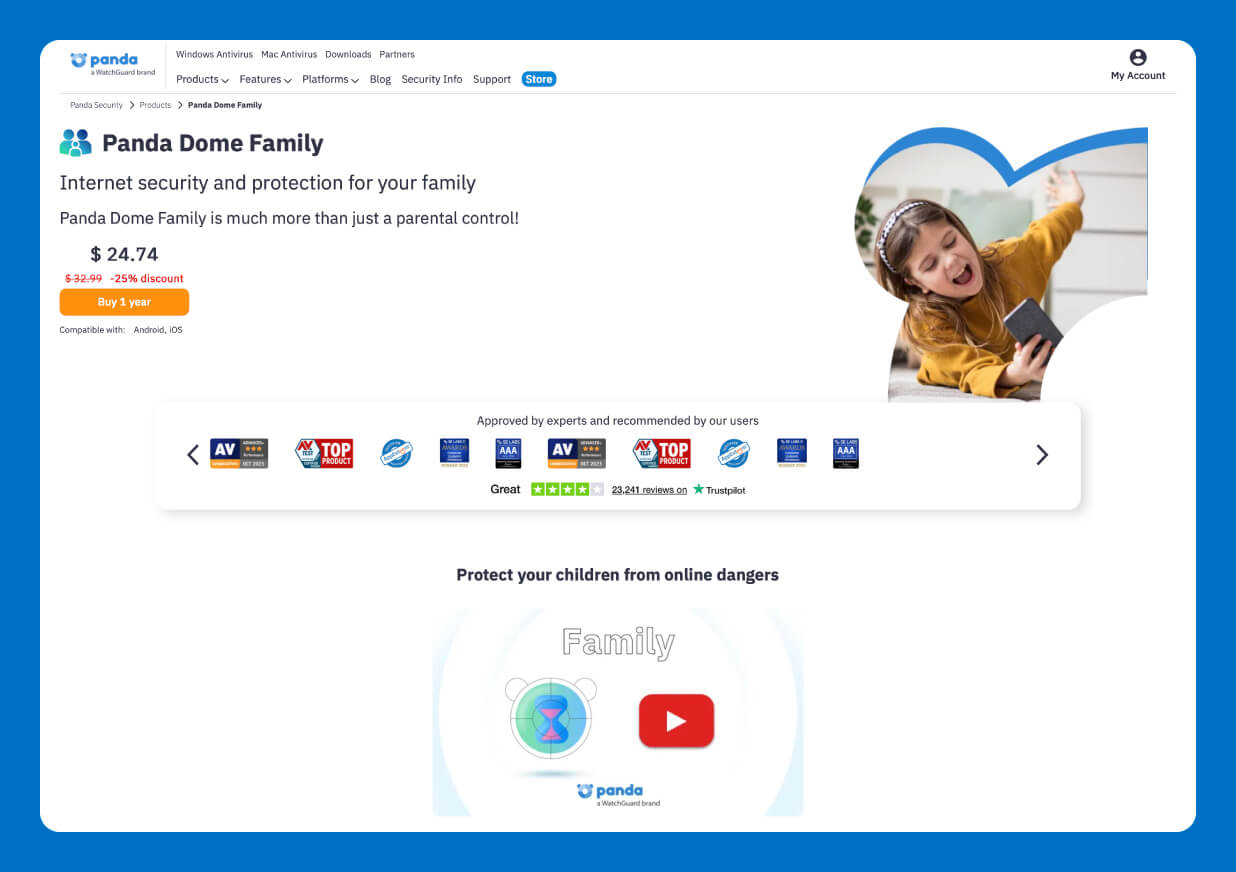
Panda Dome Family helps you keep your family safer online while giving you a better view of what your kids are doing on their phones. It includes parental controls, app and game blocking, usage limits and device tracking, with protection designed to help you deal with online threats, including various forms of malware.
When your kids head out, Panda Dome Family gives you more ways to support their internet safety; for example, you can see app and social media activity, limit internet access during certain hours and set safe areas that trigger an alert when your child enters or leaves.
With more than 23,000 reviews and a 4.1 out of 5 rating on Trustpilot, Panda Security gets plenty of love for being easy to install and use, as well as for its reliable protection and helpful customer support.
Pricing
Panda Dome Family costs $2.75 per month for 5 devices.
Key Features
- Real-time tracking: You can see your child’s location and receive alerts when they enter or leave a predefined safe area.
- App and game controls: The software helps you review app usage, block unsuitable apps and set limits on how long your kids can use them.
- Device tracking: With Panda Dome Family, you can find a lost or stolen phone and remotely lock it to protect your personal information.
- Usage limits: You can set limits for mobile devices and apps, including specific hours when internet access is allowed.
- Panic button: The antivirus lets your child send an emergency alert with their location if they need help.
2. Norton 360 Deluxe
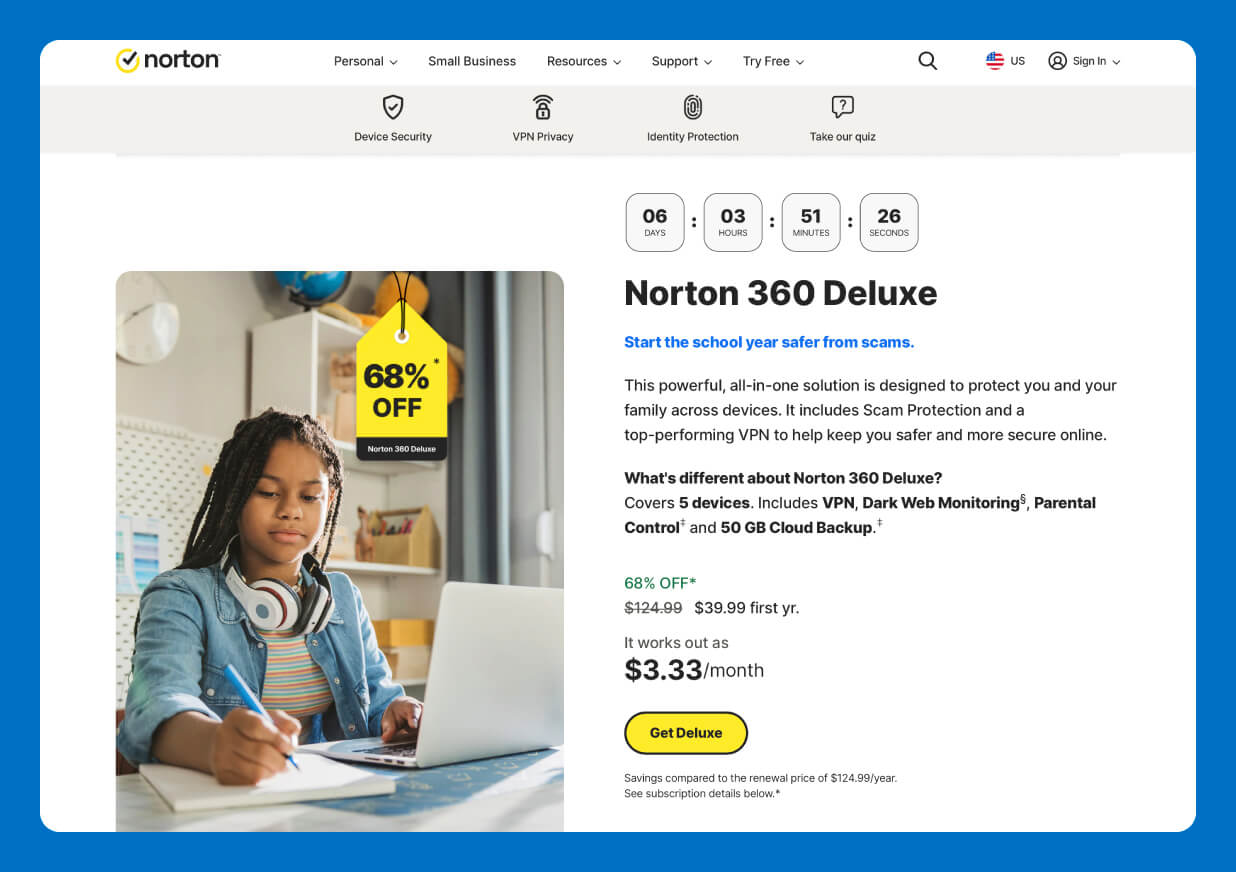
Norton 360 Deluxe gives families a lot of room to spread out. The suite protects up to five devices with antivirus and malware protection, scam protection, a virtual private network (VPN), 50 GB of cloud backup, dark web monitoring and more.
It also includes a privacy monitor and parental controls, helping you see things like the websites your kids visit and the YouTube videos they watch. You can also set screen-time limits, manage apps and block unsuitable sites. Norton 360 Deluxe is a parental monitoring app tucked inside a much bigger security suite.
Norton 360 Deluxe gets plenty of praise from users, with 78% of 1,300+ reviewers saying they would recommend it to a friend. Reviews often mention its ease of use and strong security. Complaints tend to focus on support, cost and renewals. User reviews on the family features are less detailed — pay close attention to which parental controls work on your child’s device.
Pricing
Norton 360 Deluxe costs $4.17 per month for 5 devices.
Key Features
- Deepfake protection: Norton uses AI to spot deepfake videos, with automatic detection available on supported Windows 11 systems and browsers.
- Privacy monitor: The antivirus checks data broker sites for your name, address and other sensitive information, then guides you through requests to remove eligible listings.
- Parental control tools: Norton lets you set screen-time limits, review searches and visited sites, manage apps and block unsuitable content from a central dashboard.
3. Bitdefender Total Security
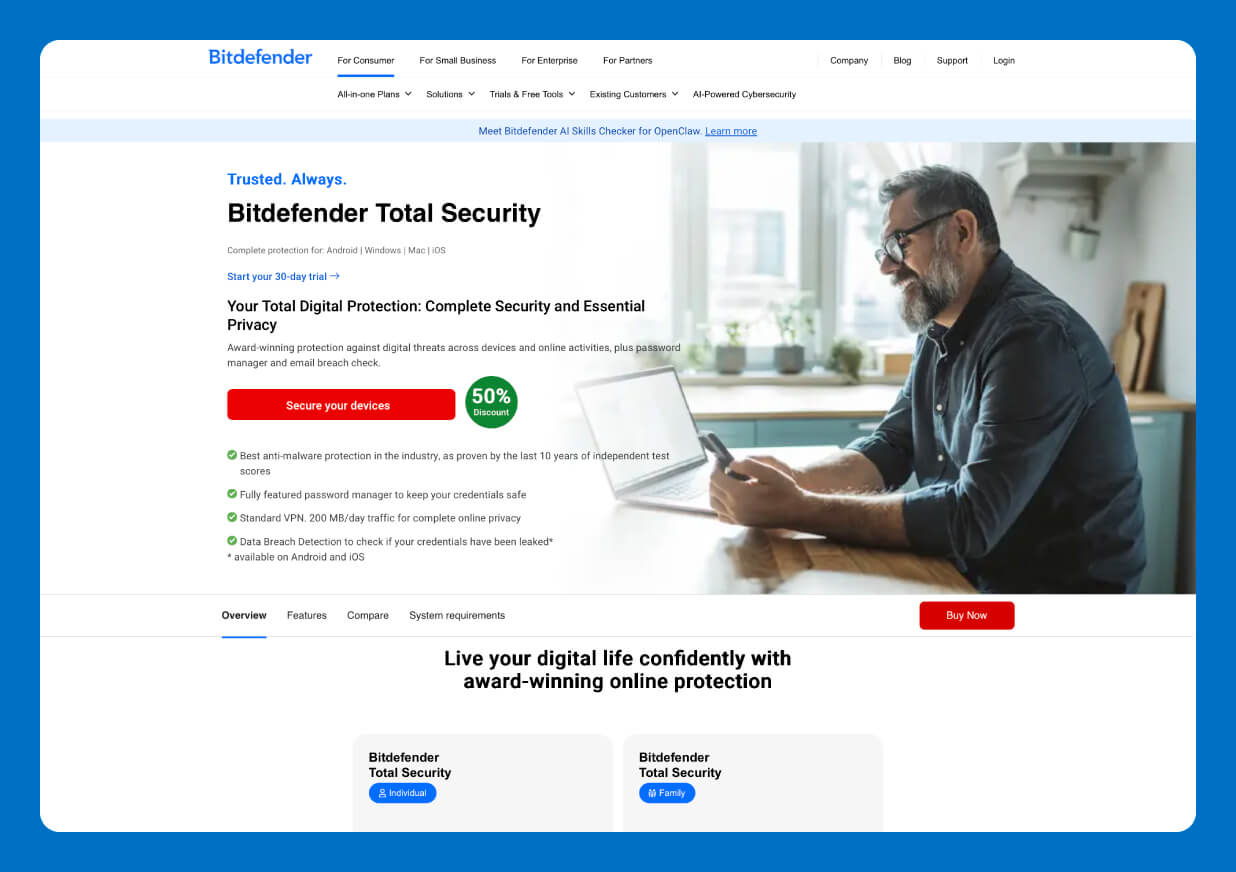
Bitdefender Total Security is built for households where the devices seem to multiply overnight. One subscription can protect Windows PCs, Macs, Android phones and iPhones, with the family plan covering up to 25 devices. Along with antivirus protection, you get tools such as web protection and a password manager.
The family plan adds parental controls to the mix. You can set internet parental controls to manage the websites your kids visit, set screen-time limits and control which apps they can use. On Android and iOS devices, the software supports location tracking and contact monitoring.
Bitdefender Total Security has a strong reputation among reviewers. Users praise its ease of use, stability and ability to protect devices without getting in the way. Parental controls get less attention in the reviews, though, and family features may feel disconnected from the rest of the Bitdefender apps.
Pricing
Bitdefender Total Security’s family plan costs $6.66 per month for up to 25 devices.
Key Features
- Parental control tools on the family plan: You can create child profiles, set screen-time limits and manage websites and apps from the parental control dashboard.
- Identity protection: Bitdefender’s identity protection tools can help monitor your digital footprint and alert you to potential risks involving your personal information.
- Cross-platform compatibility: The antivirus protects Windows, macOS, Android and iOS devices under the same subscription, helping you cover a household full of different gadgets.
4. McAfee+ Family
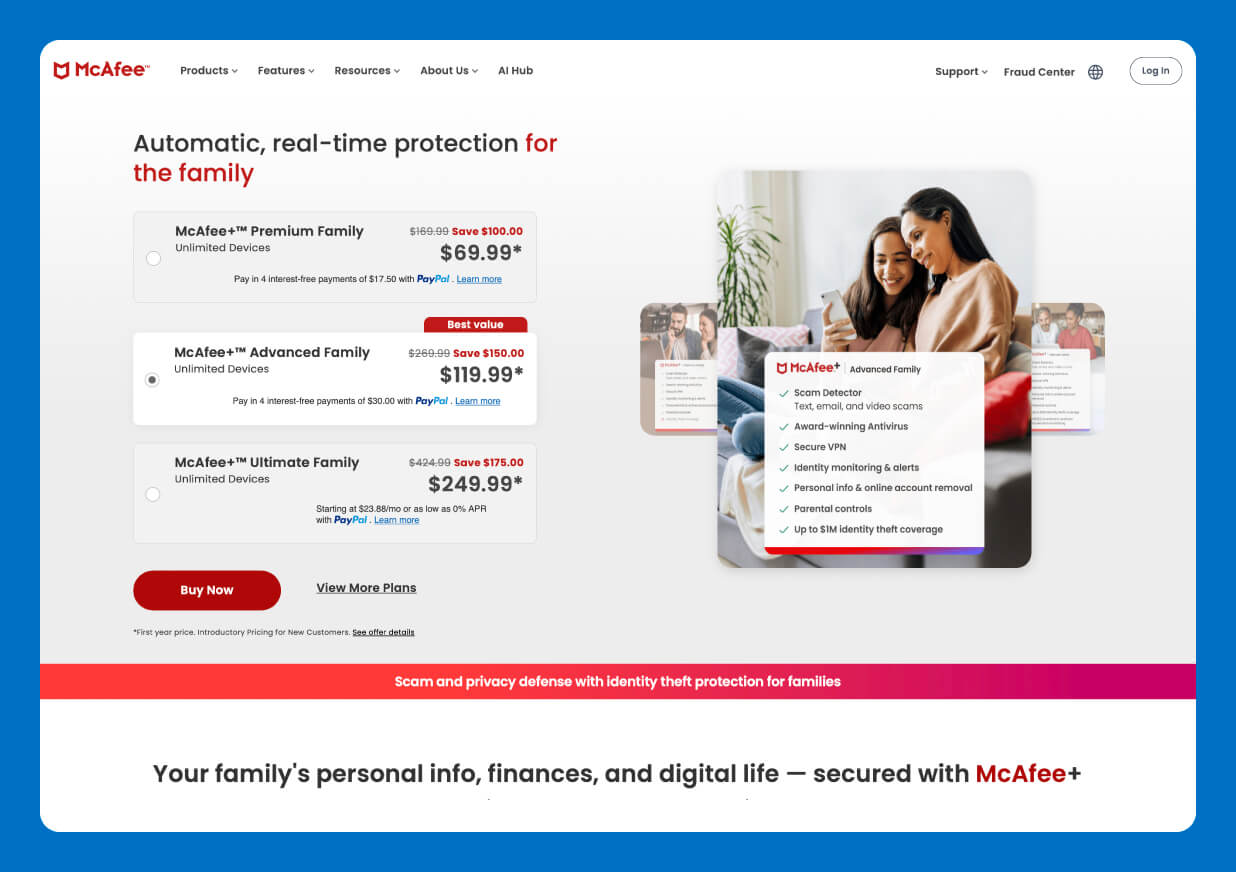
McAfee+ Family takes a slightly different route to family security. It gives up to six family members — two adults and four children under 18 — their own protection, while covering devices with antivirus security and adding identity monitoring and privacy tools.
The family plans also include a secure VPN, so everyone can get some extra protection when browsing on public Wi-Fi or shopping online.
Then there’s the kids’ side of the family plan. McAfee’s parental controls let you see your child’s device activity, set rules for apps and websites and create screen-time limits. You can also check their location and receive alerts when they arrive at or leave familiar places.
McAfee gets a mixed reception from users online. In a Reddit discussion about the service, several users criticized its resource use, pop-ups and overall performance. The conversation focuses mostly on McAfee’s antivirus protection rather than its family features, so you may want to test the parental controls themselves before committing to a plan.
Pricing
Here’s what McAfee’s pricing looks like for its family plans:
- McAfee+ Premium Family: $5.8 per month for unlimited devices
- McAfee+ Advanced Family: $9.99 per month for unlimited devices
- McAfee+ Ultimate Family: $20.83 per month for unlimited devices
Key Features
- 24/7 personal data monitoring: McAfee watches for signs that your personal information has appeared where it shouldn’t and sends alerts when something needs your attention.
- Integrated VPN: The included VPN encrypts your internet connection, adding protection when you browse on public networks or handle private information online.
- Identity theft coverage: The family plans can provide up to $2 million in identity theft coverage.
5. Kaspersky Premium
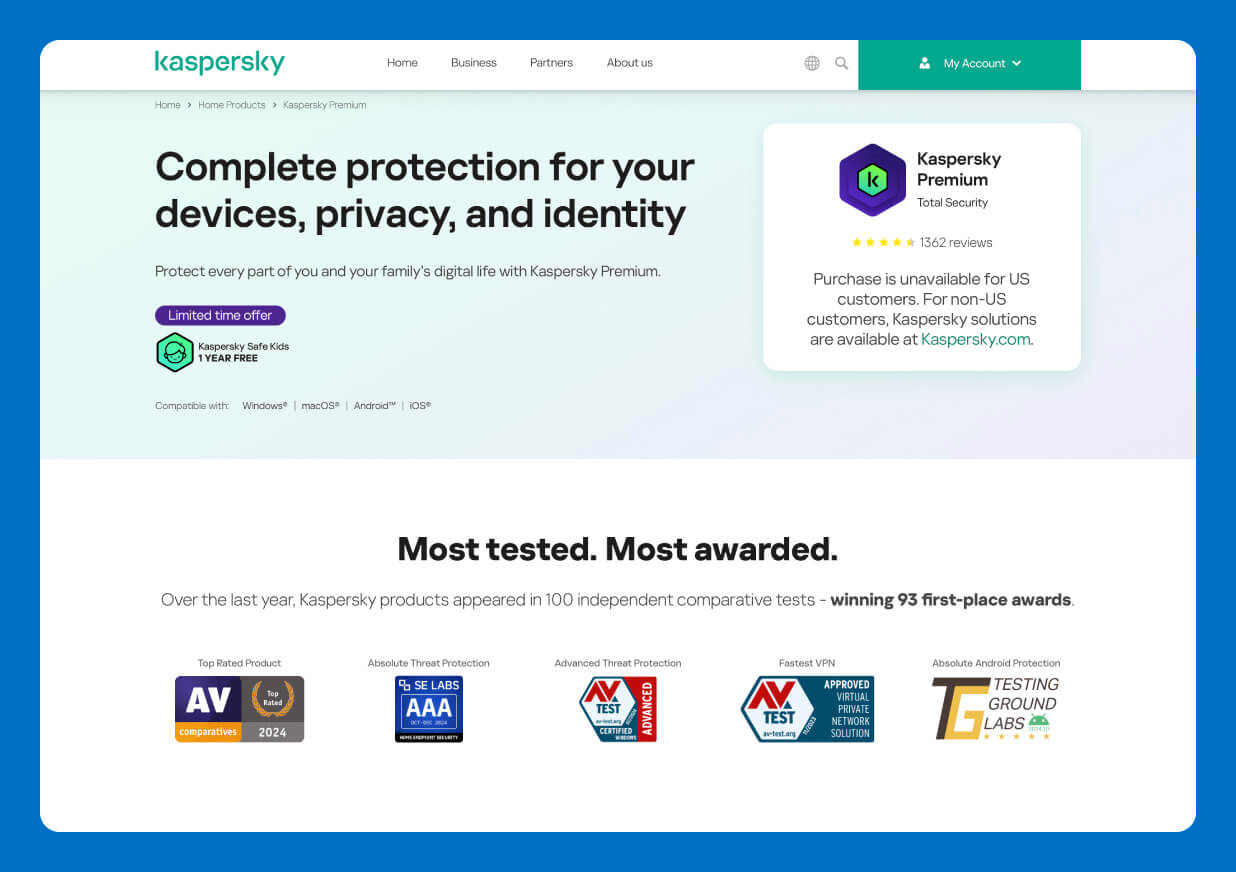
Best for: Those who need a free trial of full parental controls
Kaspersky Premium brings antivirus protection together with privacy and family safety tools. It protects your devices against viruses, ransomware and other types of cybercrime. You also get features such as anti-phishing protection to keep everyday online trouble at bay. The Premium plan works across Windows, macOS, Android and iOS.
The family-friendly part comes from Kaspersky Safe Kids, which is included with Premium for one year. You can do things like filtering websites and controlling app use on your own devices. GPS tracking and YouTube Safe Search add another layer of supervision.
Kaspersky gets strong marks from reviewers, with a 4.5 out of 5 rating across 96 reviews on G2. Users often praise its malware detection, ease of use and light impact on system performance. Some users flagged issues about confusing settings and persistent notifications.
Pricing
Kaspersky Premium is unavailable for U.S. customers. Non-U.S. customers can explore Kaspersky solutions on its website.
Key Features
- Hacking and ransomware detection: Kaspersky Premium uses real-time protection to detect and block malware, ransomware and other threats before they can cause damage.
- Threat removal: Kaspersky can detect and remove existing threats on your devices, helping clean up infections that have already made their way in.
- Child safety tools: Kaspersky Safe Kids lets you filter websites, manage screen time and control app use.
Common Parental Controls in Cybersecurity Apps
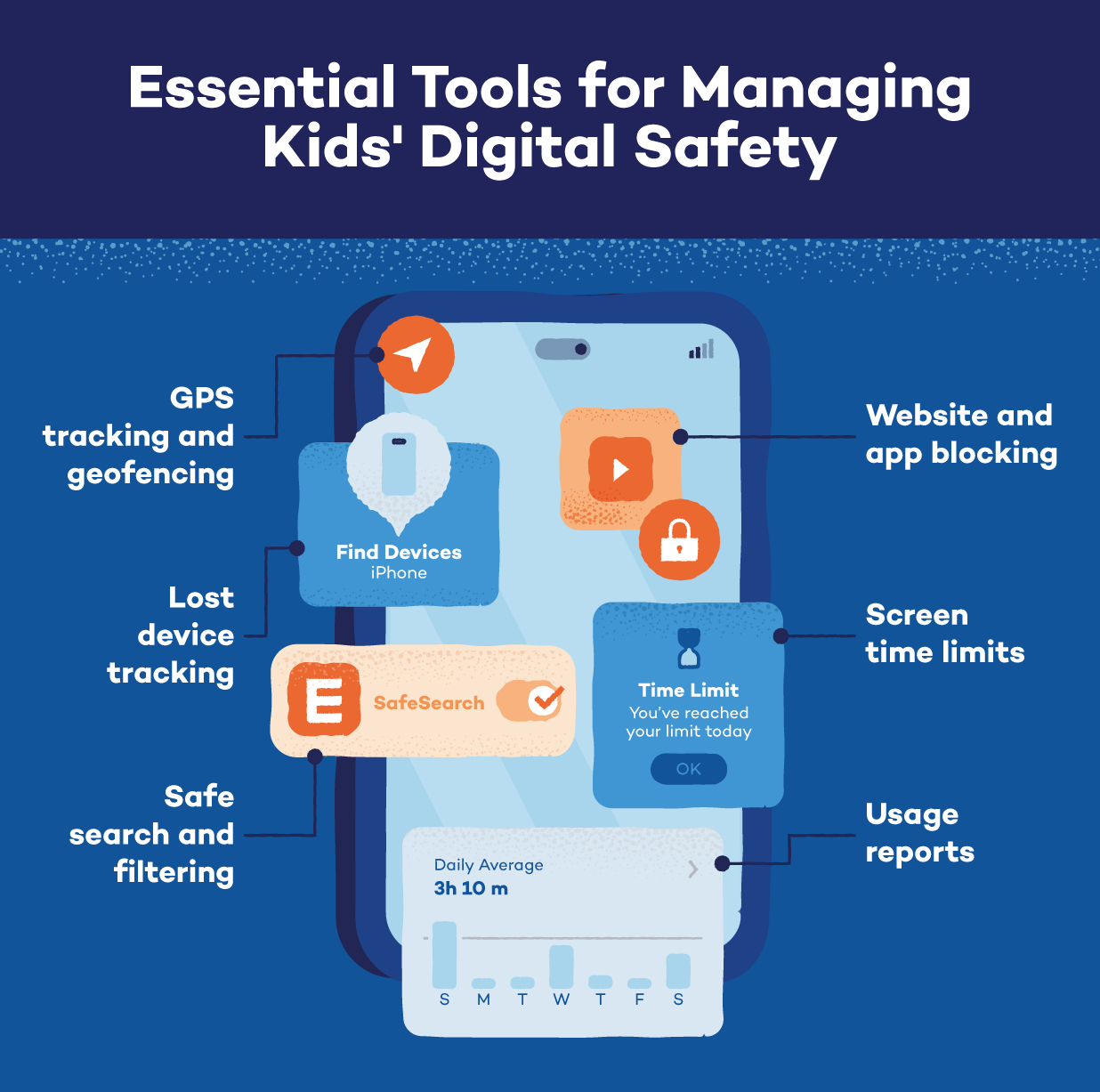
- Website and app blocking: Block websites or apps that aren’t suitable for your child’s age. This can also help keep them away from suspicious pages that could lead to malware or scareware.
- Screen time limits: Set daily limits or decide when certain apps and devices can be used. That gives kids a clear stopping point when “five more minutes” starts becoming a full afternoon.
- Usage reports: Activity reports show you which websites, apps or services your child has been using. These reports can give you a starting point for a conversation when something looks out of place.
- GPS tracking and geofencing: GPS tools can show you where your child’s device is, while geofencing can alert you when they enter or leave a set area. That can be handy when your child is walking home from school or visiting a friend.
- Safe search and filtering: Filters can remove inappropriate results before your child clicks them. They can also help you set safer search rules as you teach your children to make smarter choices online and use AI responsibly.
- Lost device tracking: If a phone goes missing, device tracking can help you find it. Some parental control tools can also let you lock the device or remotely wipe its data, giving a lost phone a much smaller window to cause trouble.
You can pair an antivirus with a family password manager to help your kids build safer password habits as they grow. It gives your family a secure place to store login details while adding another layer of protection to everyday online life.
Protect Your Family With Panda Dome Family
An antivirus program with parental controls helps you protect your family while keeping a closer eye on your kids’ online activity.
Panda Dome Family helps keep your kids safer as they browse and use their devices. You can manage their online activity from one place while giving them room to explore. The antivirus also helps you set healthy boundaries around device use and stay aware of where your kids are when they’re out and about.
Give your family extra protection wherever they go online. Get Panda Dome Family today and make safer browsing part of your family’s routine.
Best Antivirus With Parental Controls FAQ
Choosing family security software can feel like a lot when every app promises something different. Here are answers to some common questions about antivirus protection and parental controls.
Do I Need a Separate Parental Control App if I Already Have Antivirus Software?
You may not need a separate app if your antivirus already includes parental controls. A separate app can be useful if you need more advanced features than your antivirus provides.
Can Parental Controls Be Bypassed by Tech-Savvy Kids?
Tech-savvy kids may find ways around some parental controls, especially if they know how to change device settings. Use a strong password for your parental control settings and keep the software updated to make bypassing them harder.
Are Free Antiviruses With Parental Controls as Good as Paid Ones?
Free antivirus plans can cover basic security needs, while paid plans often include more parental control features. If you need tools such as detailed activity reports, screen-time scheduling or location tracking, a paid plan may be a better fit.
What Should I Look for in a Parental Control App for iPhone?
Look for a parental control app for iPhone that offers the features your family needs, such as website filtering, screen-time limits and app management. Check which features work with your child’s specific iPhone settings before choosing an app.
Is There a Good Parental Control App for Android?
Android offers more flexibility for parental controls, so you can find apps like Panda Dome with features like location tracking and detailed activity reports. Just check that the app you choose supports your child’s Android version before installing it.