Fake antivirus programs are a type of scareware that masquerade as legitimate cybersecurity platforms, typically designed to pressure people into installing malware or entering payment information. You can protect against them by exercising proper due diligence and acting quickly if you accidentally install one.
You’re casually browsing the website when, all of a sudden, pop-ups appear, claiming that hackers have infected your device.
The window urges you to install or pay for an antivirus program. It warns that hackers could steal or permanently delete your data.
If this has happened to you or is happening to you right now, you’ve almost certainly run into a fake antivirus, which is one of many forms of scareware.
Below are must-knows to identify whether what you’re running into is actually a fake antivirus, telltale signs. And steps you can take to remove it.
What Is Fake Antivirus Software?
Fake antivirus software is a program built to look like a legitimate security tool. It’s usually advertised via pop-ups that display a false, but alarming warning claiming that your device has already been compromised.
The fake antivirus then typically pushes users to a payment page or an installer, with the intent of stealing your data and/or your money.
The FTC has pursued this type of fraud for more than a decade. One recent instance was the 2024 Restoro and Reimage case. The companies had to pay a $26 million settlement to consumers they tricked into downloading their software with false warnings.
While they didn’t steal data or install malware, the software was useless. They used this excuse to upsell customers with further unnecessary charges.
Common Types of Fake Antivirus Scams and How to Avoid Them
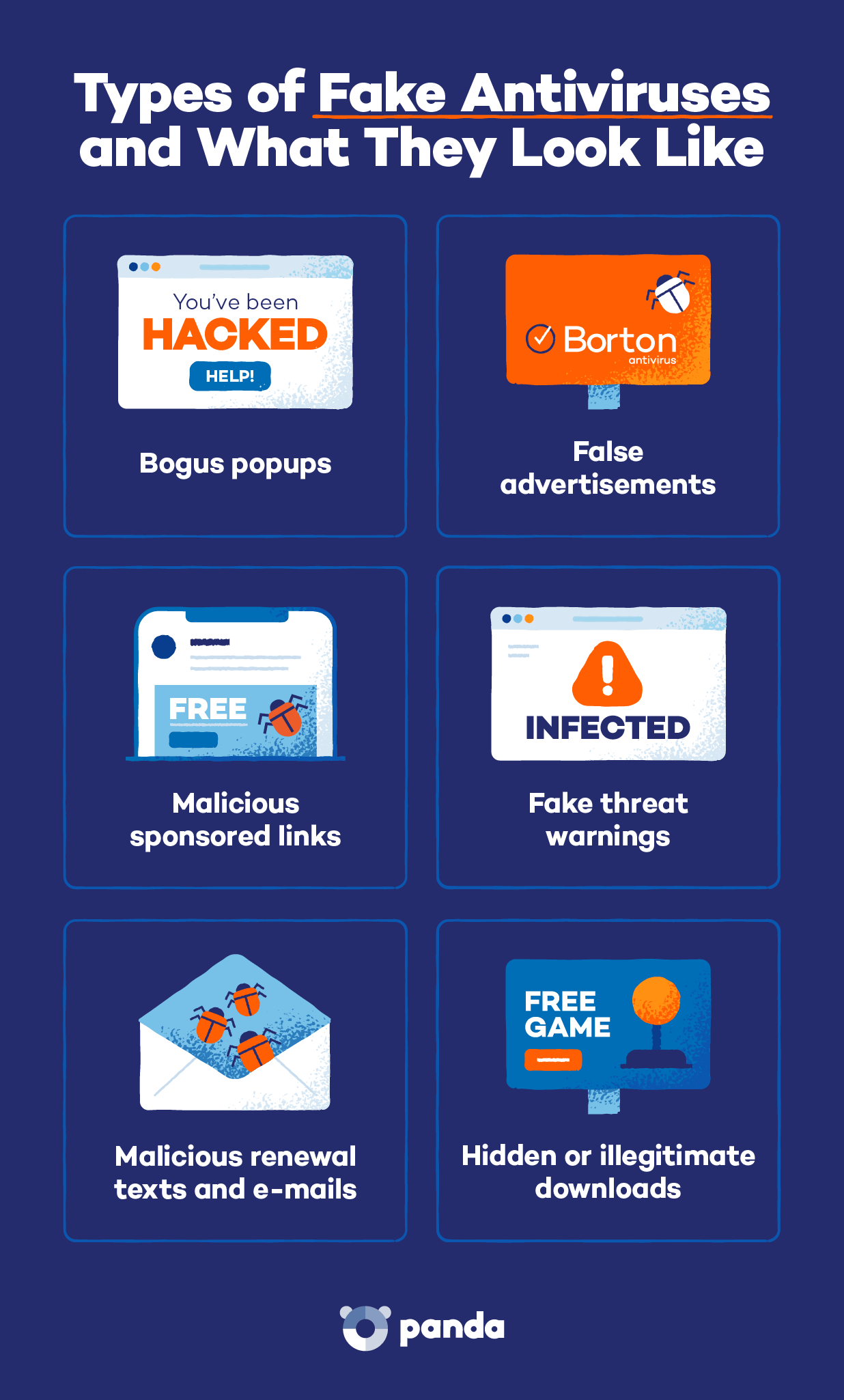
Fake antivirus scams appear in multiple formats. Recognizing the format is often the fastest way to shut one down before it causes damage. The most common ones include:
- Bogus popups: A pop-up window fills up your screen, often with a fake warning that you have malware on your device or that you’ve been “hacked.” Some are designed so that the close button doesn’t actually close the window or leads to another page. The best way to get rid of fake virus pop-ups is to close your browser or restart your device.
- False advertisements: Some cybercriminals run paid ads on search engines, social media platforms and trusted websites, styled to look like a well-known antivirus or antimalware brand. The links typically direct to pages that closely mimic the company’s design. If you’re curious about the software, type the company’s URL directly into your browser and visit the website rather than clicking the ad.
- Malicious sponsored links: Search results and social feeds sometimes feature malicious sponsored links that lead to malware downloads disguised as free antivirus software. Stick to the company’s official site or app store listing rather than clicking ad links.
- Fake threat warnings: Some pop-ups or tabs claim to have scanned your device and found dozens of infections, attempting to scare you into quickly downloading their fake antivirus to mitigate the damage. In reality, it’s impossible for a program that you haven’t already downloaded and opened to scan your computer. If you see this, close out of the tab or your browser.
- Malicious renewal texts and e-mails: Scammers send spam texts or e-mails claiming that a subscription to a trusted antivirus platform (such as Norton or McAfee) is about to expire. They may attempt to pressure you to pay, push you to a phone call (for vishing purposes). Or trick you into downloading remote access software. Don’t take the bait — always use your provider’s official app or website to make renewal payments.
- Hidden or illegitimate downloads: Fake antivirus software is often bundled in with pirated software, cracked games or other “free” tools downloaded from untrustworthy or unofficial sites. To avoid this, only download software from an official developer site or a trusted app store.
How to Know if an Antivirus Program is Fake
A few consistent red flags separate a fake antivirus program from a real one, even when the imitation looks convincing at first glance.
Unrecognizable or mimicked branding
A name or branding style that doesn’t match any known antivirus company is a clear warning sign. Some fake antivirus scam sites may also copy a trusted brand’s name, logo and color scheme with slight differences.
These websites may appear almost entirely legitimate, so it’s best not to get lost in the details and simply type in the official site’s URL if you’re unsure.
Copy and grammatical errors
Fake antivirus alerts may contain awkward phrasing, spelling mistakes or inconsistent formatting, since they may originate from outside the country whose language they’re using.
Any sort of amateurish presentation is a red flag. Legitimate security companies proofread and localize their software and material before releasing it.
Unsolicited pop-ups
Real antivirus programs don’t run scans through unsolicited pop-ups on unrelated websites. Scareware programs do this to trick you into taking the next step they’re leading you to.
Legitimate scans from trusted antivirus software typically run manually or on a schedule. The software displays any information you need directly, rather than showing it in a pop-up on a website.
Pressure to download or pay
Fake antivirus scams often rely on false urgency, using fake countdown timers, threats of data loss and claims of malware to pressure you into paying.
Know that this is a form of phishing. If you enter your payment information, the scammer will have access to it. Real antivirus companies don’t pressure their customers at all, and payments are made through their official website or app.
Requests to disable security features or programs
Some fake programs may ask you to turn off a security program (like Windows Defender), disable a firewall or grant remote access to enable protection.
This request runs contrary to real security software, which would never ask you to lower your existing defenses before installation. Disabling your existing defenses can lead to consequences as severe as identity theft.
Your security programs flag it as potentially dangerous
If your existing antivirus or the browser itself warns you about a program before you install it, that’s a strong signal that something is wrong. Legitimate security programs, like Panda Dome, can detect and protect against fake antivirus and other scareware. These warnings should be trusted.
What to Do When You Have Fake Antivirus Software
If you accidentally install fake antivirus software, you need to act quickly. The longer it stays on your computer, the more likely your sensitive personal information is to be compromised.
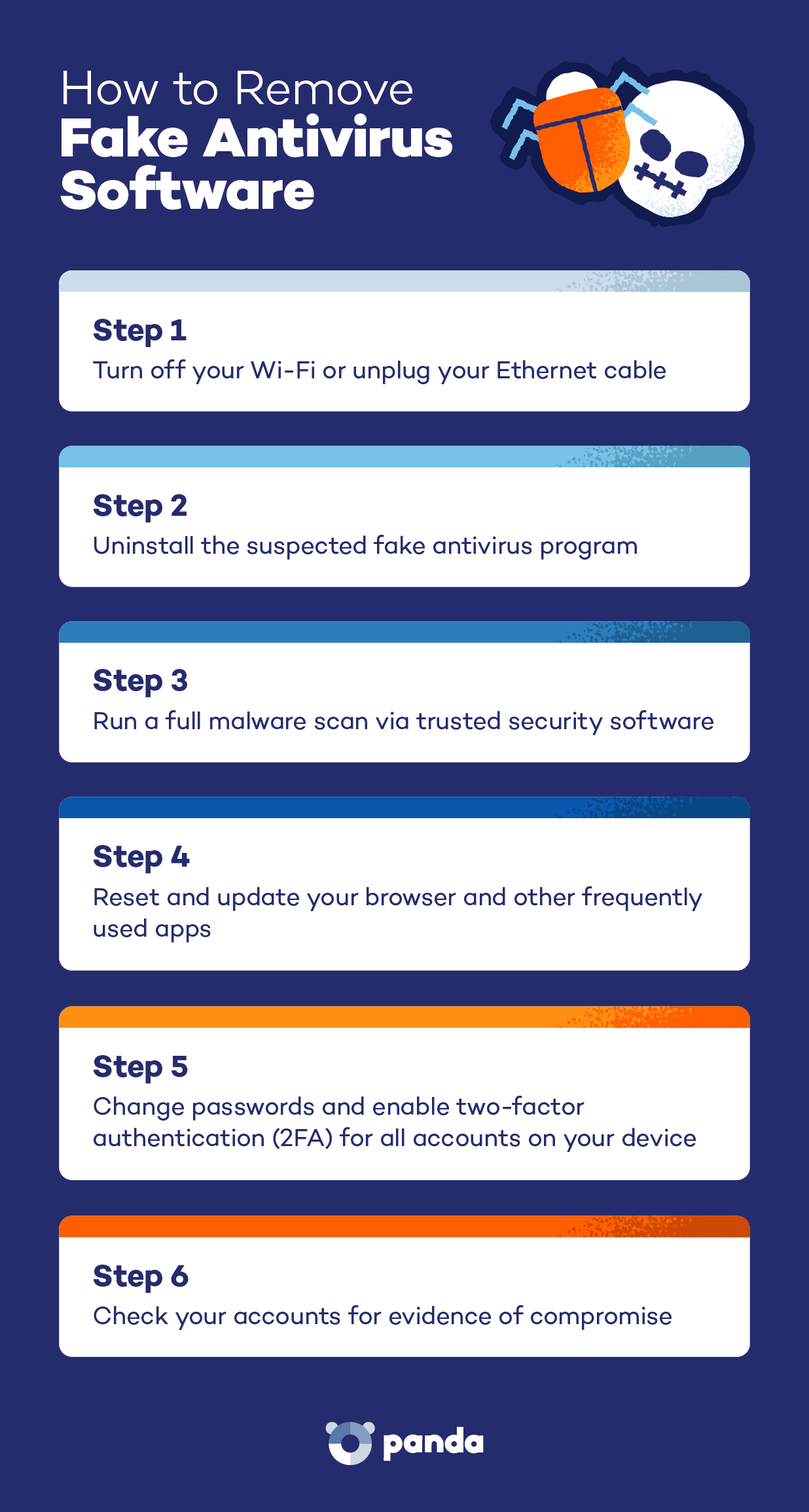
Here are the steps you need to take to remove it from your device:
- Turn off your Wi-Fi or unplug your Ethernet cable to cut off the connection that an attacker or malicious program needs to send data out or download anything further. CISA recommends this as one of the first steps after detecting an infection, since it limits the potential for damage while cleanup takes place.
- Uninstall the suspected fake antivirus program using your device’s official uninstall menu, rather than clicking any “remove” or “uninstall” button in the program itself.
- Run a full malware scan with a trusted security program like Panda Dome. This checks for and removes anything the fake antivirus installed while it had access to the device.
- Reset and update your browser and other frequently used apps to remove any unwanted settings, toolbars or extensions that the fake antivirus may have installed on your device.
- Change passwords and enable two-factor authentication (2FA) for all accounts on your device. Especially your e-mail, banking and social media accounts, as well as any other account with personal or financial information. In addition, turn on 2FA if you haven’t already. Like many other types of malware, the fake antivirus might have enabled the scammer to harvest your login information for critical apps.
- Check your accounts for evidence of compromise, like unfamiliar charges on your bank and credit card statements. Additionally, check whether your email has been exposed in a data breach. If either of these is true, you’ll need to take additional steps to protect yourself. Which may include locking your credit card or shutting down your email account.
Protect Your Devices with Panda Dome
Modern security software can help protect you against scareware, such as fake antivirus programs.
Panda Dome has a world-class antivirus baked right into the platform. So you’ll never feel the need to install a potentially fake antivirus.
You also get anti-malware, anti-spyware and plans that cover a wide range of cybersecurity protections to select from based on your needs.
FAQ
How do I remove fake antivirus pop-ups?
Close your tab or your browser, rather than clicking any buttons inside the pop-up. If the pop-ups keep reappearing, no matter which website you’re on, check whether you accidentally installed it, then follow the steps to remove it.
Are there real free antivirus solutions?
Yes. Windows Security is a free antivirus solution developed by Microsoft and bundled with Windows. Established cybersecurity companies also offer free antivirus tiers with real protection.
What specific steps should I take if I already paid for the fake antivirus?
Contact your bank to notify them of the issue, dispute your charge and lock down your card. You may also want to place a fraud alert on your credit card and file reports to your local law enforcement. And the FTC, especially if you’ve already detected unauthorized activity on your account.
How do fake antiviruses bypass system security settings?
Many rely on trickery rather than a technical bypass, convincing the user to install the program, grant administrator permissions and/or disable existing protections. Some also exploit outdated software or unpatched vulnerabilities to install on your device without any warning or prompting.
How do I check if my personal data has been stolen?
Panda Dome’s Dark Web Monitor checks whether an email address has appeared in a known data breach and alerts if leaked information turns up. Another good way to detect signs of compromise early is reviewing your financial information. Such as your overall credit profile and individual account statements. And login activity (such as on social media accounts).