Unlimited data plans are widely popular among wireless carriers in the USA. But if you overuse your “unlimited” data caps hidden in the contract, service providers can slow you down, making it hard to stream music or watch movies.
This guide helps you maintain fast speeds by listing the top data hogs, explaining how to check your usage, and offering tips to save data.
Which apps and services use the most data on your iPhone?
The biggest data hogs are services or apps that support video streaming. Music streaming apps are a far second, while iCloud sync apps can use several gigabytes (GBs) of data if you have a lot of data to back up.
- Video streaming: 0.7-10 GB per hour (dependent on video quality).
- Social media: 100 MB to 10 GB per hour (dependent on video streaming)
- Video calling: Roughly 500 MB to 2.4 GB per hour (dependent on video quality and the number of participants)
- Music streaming: Roughly 24 KB to 1 GB per hour (on Spotify, dependent on audio quality)
- iCloud sync: A few MB to several GB per day (dependent on how much you need to sync)
- Automatic updates: Roughly 25 to 500 MB per day (dependent on the number of apps that need to update)
- Background app activity: Roughly 150 MB to 500 MB per month.
How to check data usage on your iPhone
To find out how much data you’re using on iPhone, go to Settings > Cellular (or Mobile Data) > and press Sort By Usage. From there, you’ll see usage statistics for the current period (usually this month).
You can also check your iPhone’s hotspot usage by looking for Cellular Hotspot on the Mobile Data page.
How to check how much data you have left on your iPhone
You can see how much data you have left before exceeding your cap in the same Mobile Data menu. However, you may see more accurate usage numbers from your mobile carrier’s app or website.
11 tips to reduce iPhone data usage
You can reduce iPhone data usage by relying on Wi-Fi or adjusting device settings or the settings in data-hogging apps.
1. Use your home Wi-Fi automatically
Your home Wi-Fi saves you from relying on cellular data. You can automatically enable these connections by going to Settings, tapping Wi-Fi, selecting the “i” icon and toggling Auto-Join on. Just make sure your wireless router is on first.
Note that some internet service providers (ISPs) enforce data caps by charging you for extra usage or throttling (slowing) your data. Contact your provider or review their data usage policy online.
2. Lower video quality in streaming apps
Lowering the video quality on your streaming apps saves you up to 9 GB per hour. Here’s how to do that on different streaming platforms:
| Streaming app | How to lower video quality |
|---|---|
| YouTube | Open any video > gear icon (upper right) > Quality > Data Saver |
| Netflix | Tap your profile icon > App Settings > Cellular Data Usage > Toggle Automatic off > select Save Data |
| Hulu | Tap your profile icon > Settings > Cellular Data Usage > Save Data |
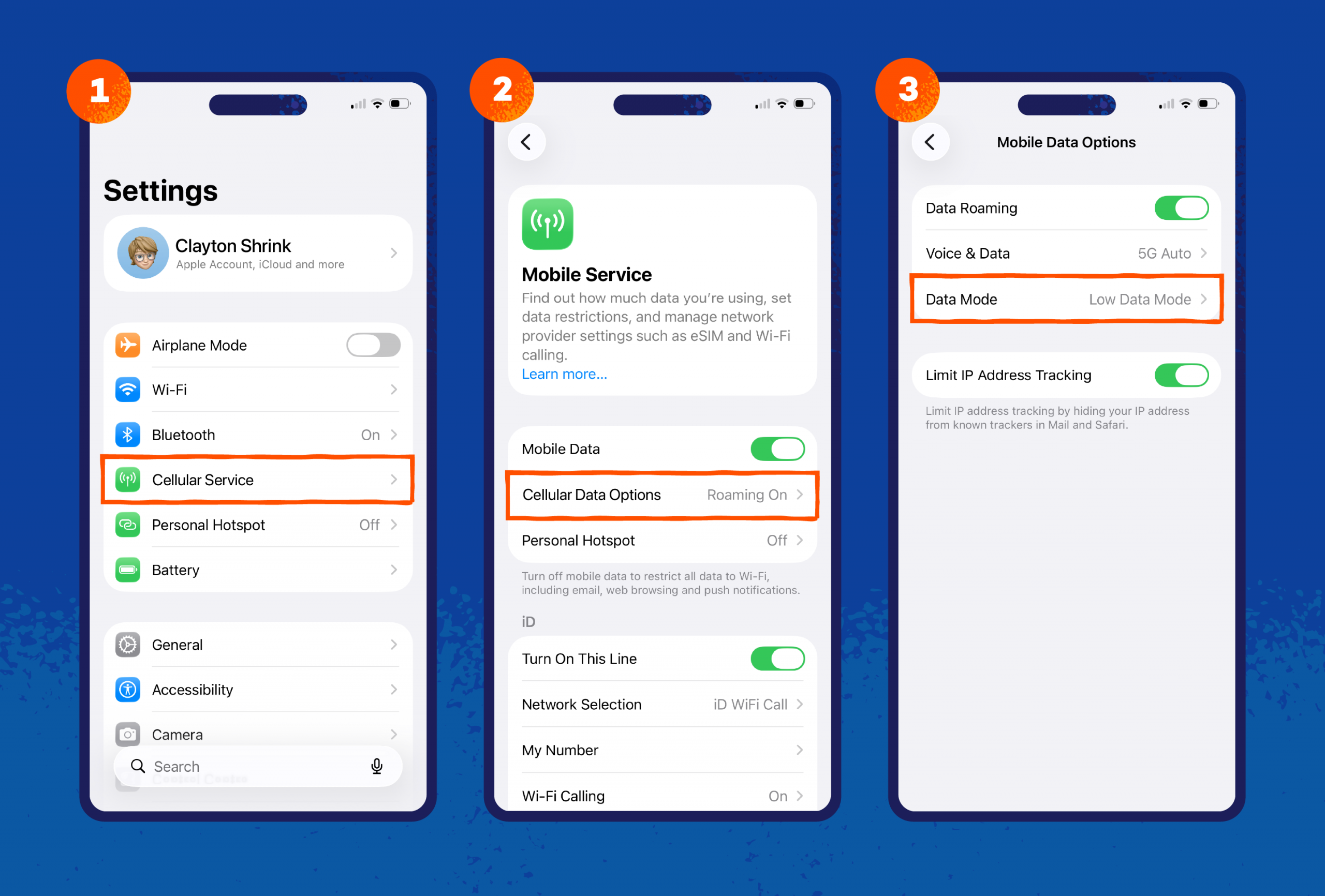
3. Turn on low data mode
Depending on your carrier, your iPhone’s default data usage is likely set to maximum. Enabling Low Data Mode reduces your usage by pausing automatic updates, iCloud Photo syncing, and background processes until you’re on Wi-Fi. Here’s how to turn it off:
- Open Settings and select Cellular
- Tap Cellular Data Options, then Data Mode
- Select Low Data Mode
4. Turn off large app downloads on cellular data
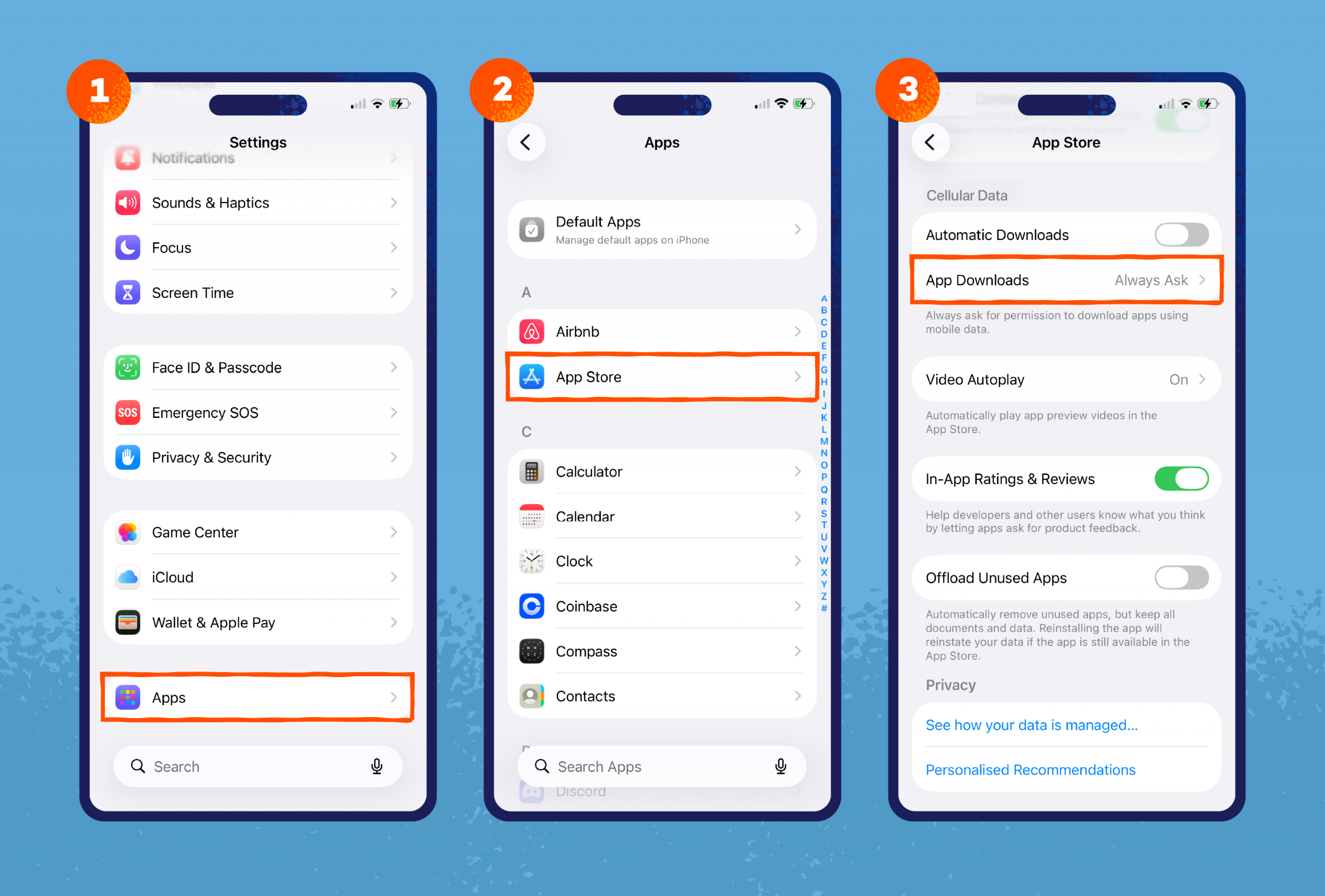
By default, attempts to download a large file on the App Store trigger a warning if the user isn’t connected to a Wi-Fi network. If that warning isn’t appearing for you, here’s how to turn it on:
- Open Settings
- Scroll down and tap App Store
- Under Cellular Data, select App Downloads
- Tap Always Ask or Ask if Over 200 MB
5. Turn off background data
Many iPhone apps constantly refresh feeds, upload data, or check for new emails. Here’s how to turn off background data to prevent this:
- Open Settings and tap General
- Select Background App Refresh and tap the same text again
- Select Wi-Fi (to only refresh on wireless networks) or Off
If your background data (or other settings) turn themselves back on, that might signal you have a hacker on your phone.
6. Run a virus scan
Sudden data usage spikes could be caused by a virus hiding on your iPhone. For instance, spyware can record your keystrokes, passwords, and even tap your phone, then send this data to cybercriminals.
Panda Security’s iPhone antivirus helps protect your personal data through real-time protection. Its behavioral detection tools help spot attempts by malicious files to steal your data, protecting you from identity theft and excessive data usage. Try it for free today.
7. Remove unwanted apps
Consider reviewing your apps to find ones you aren’t using much. Removing them stops them from using up data in the background while saving space on your phone. You can delete iPhone apps by pressing and holding the icon, tapping Remove App and selecting Delete App.
8. Turn off Wi-Fi assist
Wi-Fi Assist automatically switches from Wi-Fi to mobile data when a home or public network is slow. It also uses your mobile data to compare speeds, even when connected to local networks. Here’s how to turn it off:
- Open Settings
- Tap Cellular
- Scroll to the bottom, then toggle off Wi-Fi Assist.
9. Connect to public Wi-Fi with a VPN
Public Wi-Fi can be a great way to avoid slow mobile speeds while on the go. However, it’s best to connect to these networks via a virtual private network (VPN), as they are prone to risks. For instance, cybercriminals can install packet sniffers to intercept data in transit, including your sensitive information.
Panda Dome VPN is available for free with a 150 MB/day limit, which is more than other free VPN providers that typically apply monthly limits. Paid subscribers can cover up to 5 devices for nearly $12 yearly, probably less than what you paid for a meal when using a restaurant’s Wi-Fi.
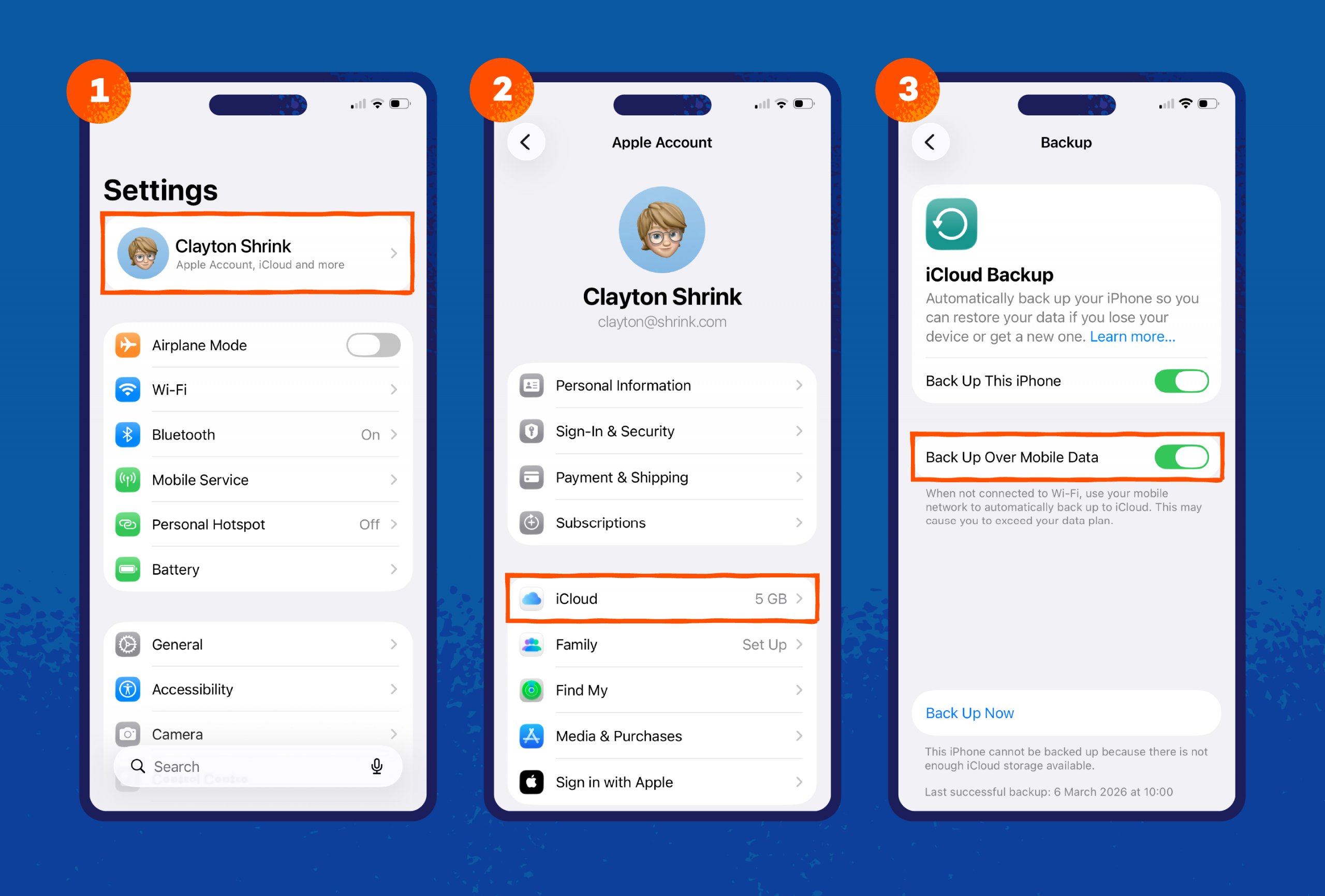
10. Turn off iCloud Backup on cellular data
Turning off iCloud Backup suspends automatic file backups until your iPhone connects to a Wi-Fi network. Here’s how to do it:
- Open Settings and tap your Apple ID at the top
- Tap iCloud and then iCloud Backup
- Toggle off Backup Over Cellular
11. Turn off your hotspot
Your personal hotspot turns your phone into a portable Wi-Fi router, letting you use your cellular data to access the internet on a laptop. Leaving your hotspot on drains your data plan if your laptop is downloading updates in the background. Here’s how to turn it off:
- Open Settings
- Tap Personal Hotspot
- Toggle off Allow Others to Join
Defend your iPhone while saving data with Panda Security
Keeping a close eye on your mobile data helps you enjoy fast speeds all month long. With a few settings changes and app removals, you’re on the right track. But if you’re still experiencing slowdowns even though you’re within your data cap, you might have malware.
Panda Dome Essential for iOS helps protect your iPhone from data-stealing (and using) malware with powerful behavioral detection that catches malware based on suspicious activity. It also comes with a VPN, which encrypts your data so that cybercriminals hiding on public networks can’t steal it.
Try it for free to keep your iPhone safe from data-hogging malware.