



How much RAM do I have?
- On Windows, search “About your PC” and check Installed RAM.
- On a Mac, open Activity Monitor and look under the Memory tab.
- On Android, check About phone in Settings.
- On iPhones, look up your model’s RAM on Apple’s Tech Specs page.
Figuring out how much RAM you have can help you understand why your device feels fast one day and sluggish the next. Random access memory (RAM) is your phone or computer’s short-term memory, and when it gets tight, apps slow down, pages stall and simple tasks take longer than they should.
Discover how to check your RAM on Macs, Windows PCs and phones to spot slowdowns early and keep your device running the way you expect. Also, get to know how much memory a laptop should have so you can pick the right device without guessing.
What Is RAM?
RAM is the part of your device that holds information your computer or phone needs right now. RAM is temporary memory that helps run apps smoothly, open files faster and make your computer run faster during everyday tasks.
Many people mix up RAM with other types of storage, such as:
- Read-only memory (ROM), which is built in and doesn’t change. It holds core system instructions.
- A hard drive or solid-state drive (SSD), which is a long-term storage where your photos, apps and downloads stay even when the power is off.
RAM, on the other hand, gets cleared every time you restart your device.
You might also see terms like:
- Double data rate 4 (DDR4) or double data rate 5 (DDR5): These are common RAM types in PCs and laptops. Higher numbers usually mean faster and more efficient memory.
- Low-power double data rate (LPDDR): This signifies RAM used in phones, tablets and many modern Macs. It’s quick and uses less battery.
- Unified memory: This is the RAM built into the same chip as the processor in Apple silicon devices, giving apps faster access to everything they need.
When RAM fills up, your device starts borrowing space from your drive. On Windows, this is the paging file. On Macs, it’s called virtual memory. It keeps the system running, but it’s slower than real RAM, so apps may stutter or take longer to load.
How Much RAM Do I Need?
The amount of RAM you need depends on what you do each day. Simple tasks don’t need much, but games, editing tools and heavy apps ask for more.
Here’s a quick overview of how much RAM you need:
- 4 GB RAM: This works for very basic use like email, light browsing and simple documents. 4 GB is common in older devices and may feel slow with modern apps.
- 8 GB RAM: This is a solid everyday choice for browsing, streaming, schoolwork and casual multitasking. 8 GB comfortably handles day-to-day needs.
- 16 GB RAM: This is great for gamers, remote workers and anyone who jumps between several apps. 16 GB keeps things feeling smooth under heavier loads.
- 32 GB RAM: This is helpful for video editing, design work, large spreadsheets and demanding creative tools. 32 GB is ideal for power users.
- 64 GB RAM: This is useful for heavy content creation, large projects and advanced workflows that need lots of memory at once. 64 GB is great for professional studios and serious multitaskers.
- 128 GB RAM or more: It’s usually found in high-end workstations and servers. This level of memory is meant for scientific work, complex 3D rendering, large datasets and running several virtual machines at the same time.
| RAM amount | Best for | Typical devices |
|---|---|---|
| 4 GB | Basic tasks | Older laptops and budget phones |
| 8 GB | Everyday users | Most phones, tablets and mid-range laptops |
| 16 GB | Gamers and remote workers | Gaming laptops, higher-end tablets and premium phones |
| 32 GB | Creators and professionals | High-performance laptops and desktops |
| 64 GB | Advanced users | High-end desktops and pro creative machines |
| 126 GB or more | Workstations and servers | Professional workstations |
In case your device feels sluggish or freezes with just a few apps open, moving up a level in RAM can make a big difference.
How to Check RAM Usage on Mac


If you just need to see how much RAM you have on your Mac or iMac, click the Apple icon in the upper-right corner and select About This Mac. It’ll open up the details about your system’s RAM capacity (listed next to Memory).
But if you want more details, like which apps are using the most memory, you will have to use the Activity Monitor. It’s built into macOS and gives you a clear view of what’s using your RAM. It’s also a handy stop when you’re learning how to check laptop specs in general.
Follow these steps to check RAM usage on your Mac or iMac:
- Go to Applications > Utilities and click Activity Monitor.
- Select the Memory tab. This shows all your apps and how much memory they’re using.
- At the bottom of the Memory tab, you will find details about:
- Physical Memory: This shows the total amount of RAM installed on your Mac.
- Memory Used: This shows how much RAM is active right now.
- App Memory: This shows how much RAM your open apps are using.
- Wired Memory: This shows the amount of memory macOS needs to operate. It cannot be moved or reused by other apps.
- Compressed Memory: This shows how much RAM macOS has squeezed down to free up space for active apps.
- Cached Files: This shows files stored in unused RAM to help apps reopen faster. macOS replaces these files when more memory is needed.
- Swap Used: This shows how much space on your drive is being used as backup memory when RAM is full. It works, but it’s slower than real RAM.
- Memory Pressure: This shows a colored graph that reflects how hard your RAM is working. Green means your Mac is running smoothly, while yellow or red means it is struggling.
You can also scroll through app details if needed to spot apps that may be slowing things down.
Heads-up!
The steps we covered are for macOS Sequoia Version 15.6.1. If you use a different version, the wording for these steps might look a bit different. You can use Apple’s Activity Monitor User Guide to see the exact steps for your version.
How to Check RAM on Windows 10 or 11
Many people check RAM on Windows while trying to speed up a slow PC or planning to clear the cache. Windows gives you a few simple ways to see how much RAM you have. The steps can look a little different depending on your version, but they’re all quick to follow.


On Windows 11, you can see your RAM details in the system settings. Here’s how to get there:
- Open Settings > System > About.
- Scroll to the Device Specifications section.
- Look for the Installed RAM option under Device Specifications.
Windows 10 keeps your memory information in the same place as Windows 11, so you can follow the same steps to find your RAM on Windows 10.
How to Check RAM on Your Phone
Phones don’t show memory details in the same place as computers, but you can still find them with just a few taps. Knowing the RAM storage on your phone is also useful when you’re learning how to test RAM or trying to remove malware or bloatware that might be slowing things down.
Finding RAM on Android Phones

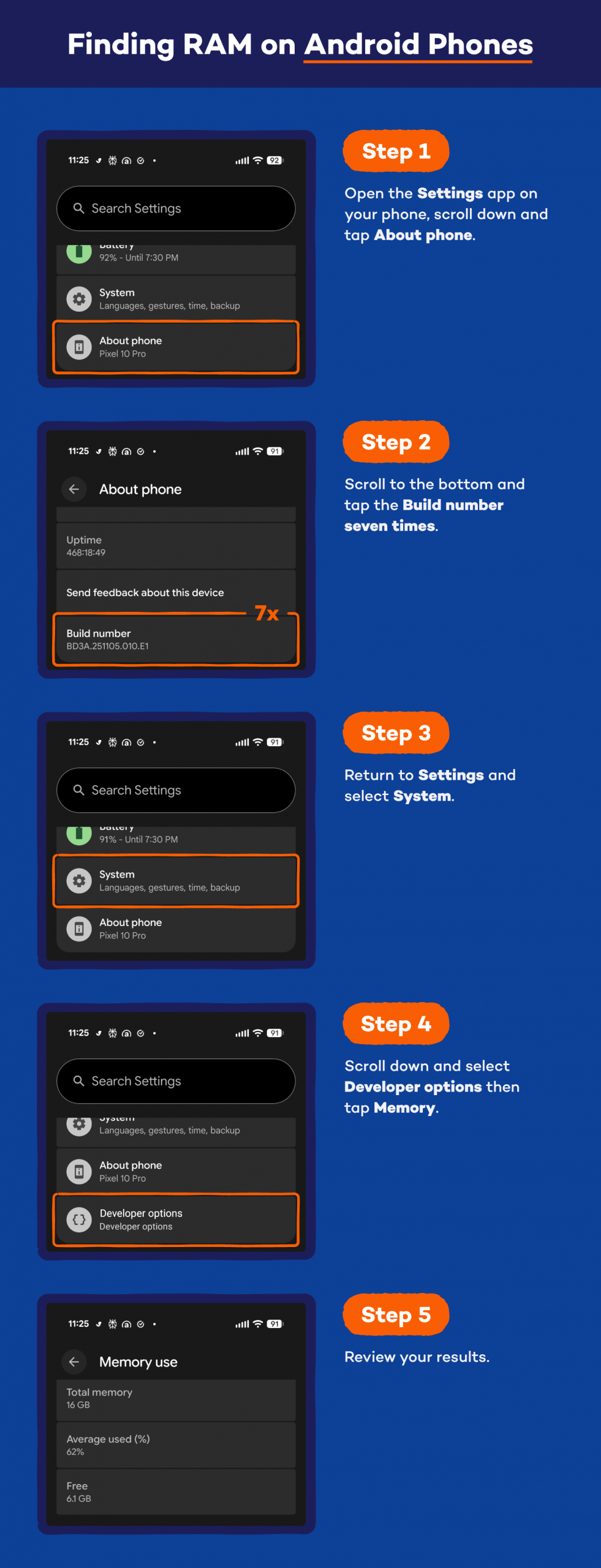
Most Android phones include RAM info in the device settings. Here’s a simple way to check it:
- Open the Settings app on your phone.
- Scroll down and tap About phone.
- Scroll to the bottom and tap the Build number seven times.
- Return to Settings and select System.
- Scroll down and select Developer options.
- Select Memory and review your results.
Finding RAM on iPhones

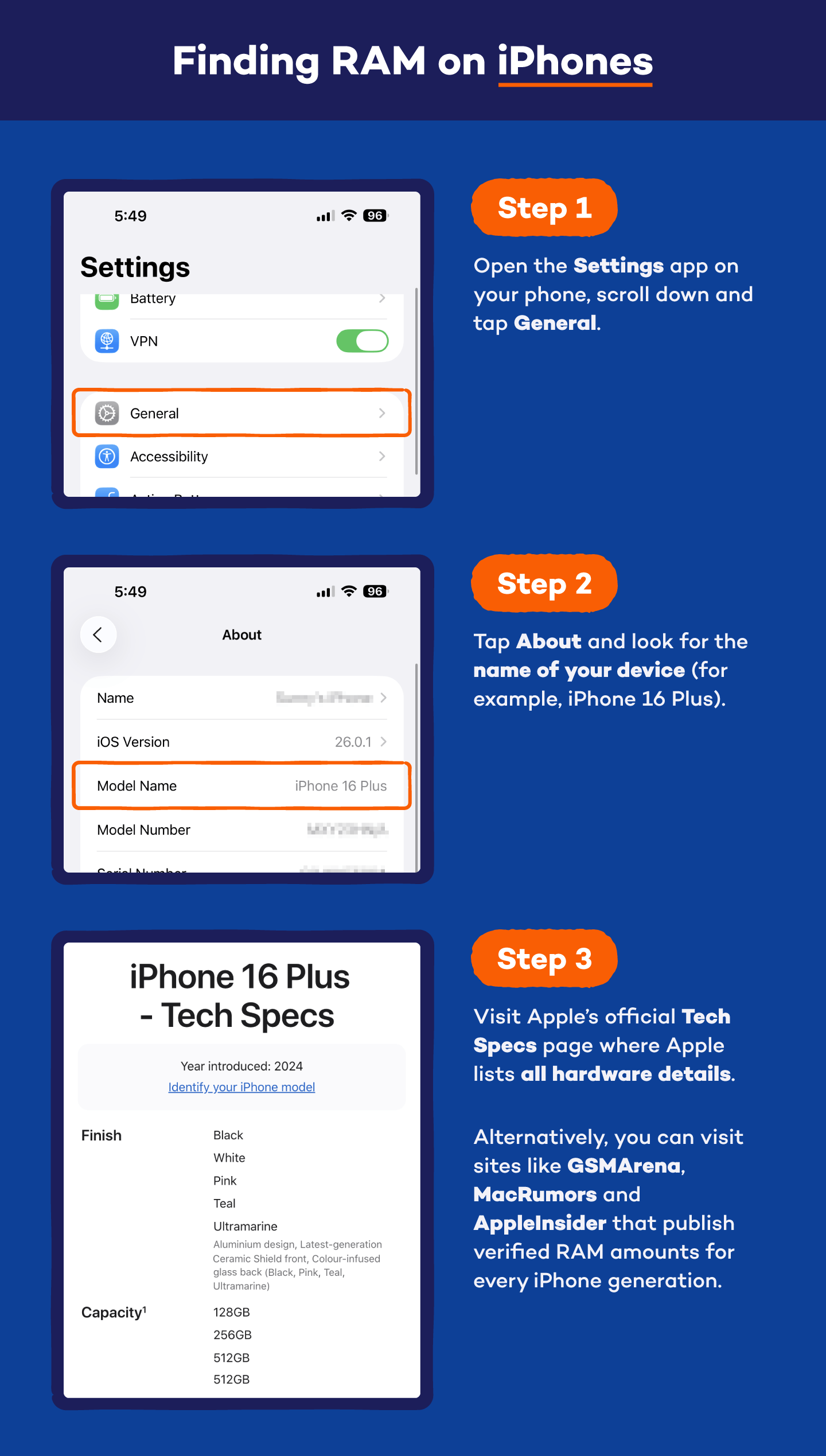
Apple doesn’t list RAM inside the Settings app, but you can still find it easily:
- Get your iPhone model name handy.
- In case you forgot it, go to Settings > General > About and look for the name of your device (for example, iPhone 16 Plus).
- Type iPhone 16 Plus RAM tech specifications into Google or visit Apple’s official Tech Specs page.
- On the Tech Specs page for your model, Apple lists all hardware details there, including storage options, camera setup and processor.
- If Apple doesn’t list the RAM on its Tech Specs page, you can visit sites like GSMArena, MacRumors and AppleInsider that publish verified RAM amounts for every iPhone generation.
How to Upgrade RAM
Upgrading or tuning your memory can make your device feel quicker and more responsive. A few simple changes can free up RAM, improve your device’s performance and even help increase upload speed during everyday online tasks.
Here’s what you can do:
- Install extra memory: It’s the most direct way to boost speed and works on many Windows laptops and desktops. Some devices — like newer Macs — don’t allow upgrades, though.
- Close background apps: Shutting down unused apps can free up RAM fast. It also helps active programs run without lag.
- Run a RAM speed test: Testing your memory with the help of tools like MemTest86 helps you spot slow or faulty sticks. It’s an easy way to check whether your RAM is holding back your device.
- Clean startup programs: Removing heavy apps from your startup list can improve your PC’s performance right away. Your system loads faster because fewer programs fight for memory at boot.
- Use virtual memory settings: You can let your system borrow space from your drive by adjusting the virtual memory (paging file) settings. On Windows, you can do this by opening System Settings, searching for Performance Options and increasing the paging file size. It’s slower than real RAM, but it helps when you’re running out of space.
- Scan for all types of malware: Malicious apps quietly drain memory and slow your network, which can even affect upload speed during online tasks. A quick scan can clear out hidden troublemakers.
- Check compatibility before upgrading: Look up your system specs, including how much RAM you have, before buying new memory. This helps you avoid parts that don’t fit or won’t work with your device.
Here are some RAM upgrade options by device type:
| Device type | Upgrade-friendly? | What you can upgrade | Notes |
|---|---|---|---|
| Windows desktop PC | Yes | RAM sticks or storage drives | Easiest device to upgrade — most towers have open slots for extra memory |
| Windows laptop | Sometimes | RAM sticks (if not soldered) | Many budget and mid-range models allow RAM upgrades, but some thin-and-light laptops do not |
| Older Intel MacBooks and iMacs | Limited | RAM (select models only) | Some older Macs have removable memory, but recent ones don’t |
| Apple silicon Macs (M1/M2/M3/M4) | No | Nothing related to RAM | Memory is built into the chip and cannot be changed after purchase |
| Chromebooks | Rarely | Storage only | Most models have soldered RAM, so upgrades usually aren’t possible |
| Android phones | No | N/A | RAM is built in and fixed at the factory |
| iPhones | No | N/A | All iPhone models have non-upgradeable RAM |
Is Low RAM the Only Reason for Slow Performance?
Low RAM can definitely cause slowdowns, but it’s not the only thing that affects your device. Many everyday issues can drag performance down even when your memory is fine.
Here are some of the most common ones:
- Too many background apps: Extra programs running quietly in the background take up system resources. Over time, they make your device feel heavier and slower to respond.
- Malware or unwanted software: Hidden activity from malicious apps can overwhelm your system. This can lead to sudden freezes, slow loading times and random pop-ups.
- An overloaded browser: Dozens of open tabs can push your device past its comfort zone. Browsers are memory-hungry, and they slow down everything else when they get too full.
- Low storage space: When your drive fills up, your device struggles to save temporary files and work efficiently. This often leads to longer loading times and choppy performance.
- Outdated software or operating system: Older versions aren’t optimized for newer apps. Updates often fix bugs and improve speed, so skipping them can slow you down.
- Failing or aging hardware: Parts like hard drives and batteries wear down with time. As they age, your system can get slow-moving even if the RAM is fine.
- Dust buildup and overheating: Heat forces your device to slow itself down to stay safe. Dusty fans and vents trap heat and make the slowdown even worse.
Quick Fixes to Speed Up Your Device
A few small tweaks can make your system feel lighter without any upgrades. Here’s what you can do:
- Restart your device: A quick reboot clears stuck processes and frees temporary memory, giving you a clean start.
- Close unused apps and browser tabs: Reducing clutter lowers the load on your system and improves responsiveness.
- Run a malware scan: Removing hidden threats using anti-malware can instantly boost speed and stability.
- Clear old files and free up storage: Extra space helps your device save temporary data more efficiently.
- Update your software: Newer versions often fix slowdowns and improve performance.
- Clean vents and fans: Better airflow prevents overheating and avoids the automatic slowdowns caused by excess heat. A quick dusting is an easy way to clean your PC and keep it running smoothly.
Optimize Your RAM and Performance With Panda Security
A smoother device doesn’t always require new hardware. Sometimes all you need is a bit of cleanup and a tool that knows where the clutter hides.
Panda Cleanup helps your device breathe again by removing the digital clutter that builds up over time. It trims down the background activity that slows things to a crawl and opens up space your system can actually use.
With fewer hidden processes competing for attention, your computer can free up RAM, start faster and stay responsive throughout the day. This means you get a lighter, quicker machine without digging through settings or hunting for buried files.
Try Panda Cleanup today and give your device a fresh start.
How Much RAM Do I Have? FAQ
Here are quick answers to the questions people most often ask when learning about RAM.
What Does a RAM Error Look Like?
When RAM starts failing, your device gives warning signs long before it stops working, such as:
- Sudden crashes or restarts
- Apps freezing without warning
- The Blue Screen of Death on Windows
- Files refusing to open or becoming corrupted
- Slowdowns that appear out of nowhere
- Random beeps or error messages during startup
Can Bad RAM Be Fixed?
Faulty RAM can sometimes be managed, depending on the cause. Here are a few steps that may help:
- Restart your device to clear temporary memory issues.
- Remove the RAM from its slot and place it back in firmly (desktop PCs and some laptops only)
- Run a memory diagnostic tool to confirm the problem.
- Clean dust from the RAM slots and connectors.
- Replace the RAM if tests show consistent errors.
Do I Need 8 GB or 16 GB RAM?
Most everyday users are comfortable with 8 GB, especially for web browsing, streaming, schoolwork and light multitasking. If you play games, keep many apps open or work with editing software, 16 GB gives you more breathing room and a smoother experience.
How Do I Check How Much RAM I Have?
On Windows, type “About your PC” into the search bar and look for Installed RAM. On a Mac, open Activity Monitor and check the Memory tab. On phones, the storage is listed in the device settings (Android) or on your model’s tech specs page (iPhone).